

Set up alerts
Stay in control by automating monitoring with customized alerts. 24metrics lets you send instant notifications via email or Slack based on real-time activity.
Set up notification channels
Section titled “Set up notification channels”Before creating alerts, define where notifications should go:
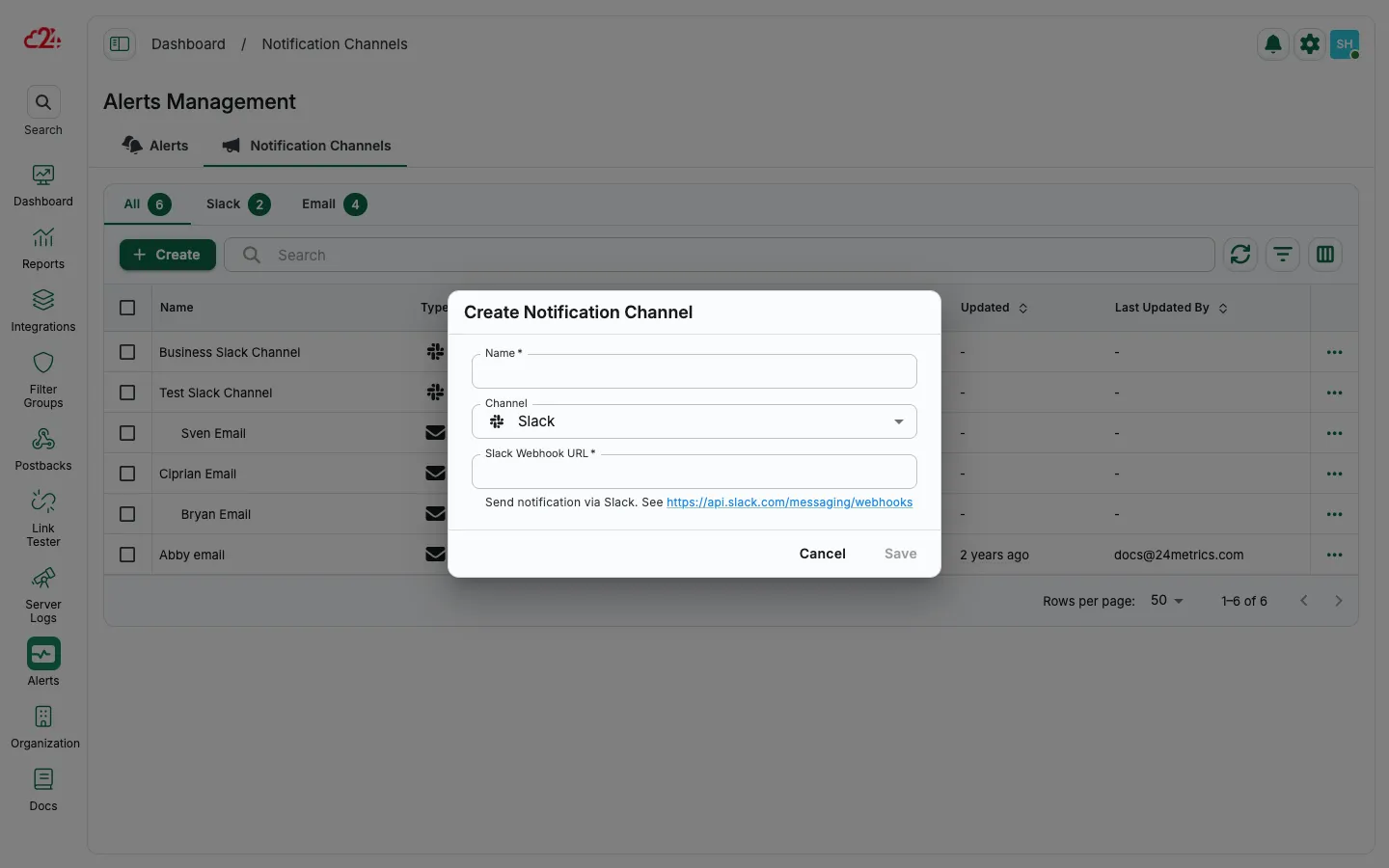
- Open Alerts → Notification Channels.
- Click Create.
- Enter a Name and select the channel type (Slack or Email).
- Add a Slack webhook URL or recipient email address.
- Click Save.
Choose alert type
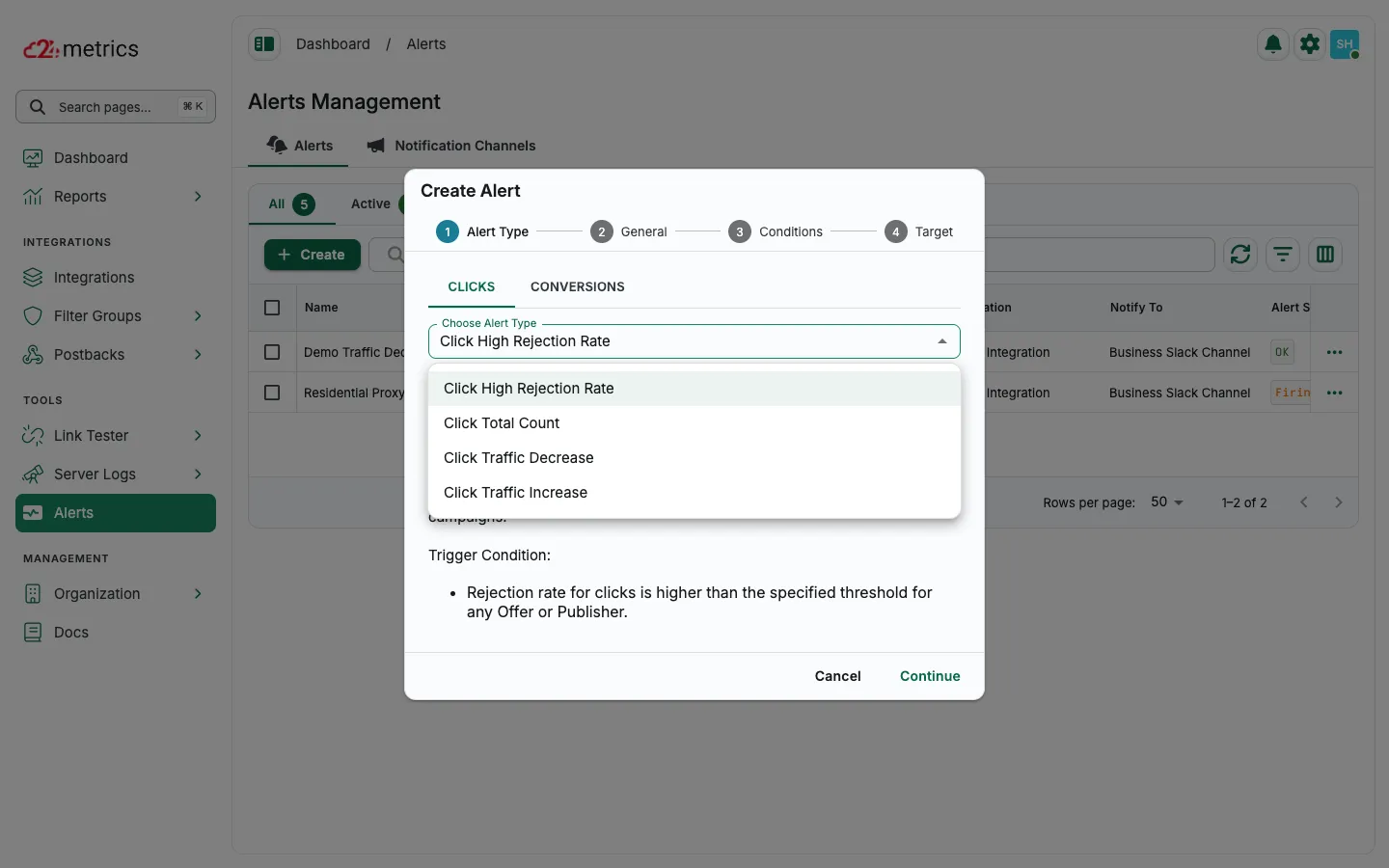
Section titled “Choose alert type”Open the Alerts tab and click Create to start the setup wizard. Alerts are configured for CLICKS or CONVERSIONS, one at a time.
Available click notification types include:
- Click High Rejection Rate
- Click Total Count
- Click Traffic Decrease
- Click Traffic Increase
General alert settings
Section titled “General alert settings”- Alert Name: Set a name and assign a notification channel
- Skip Resolved Notifications: Turn off if you want alerts when issues are resolved
- Repeat Firing Notifications: Keep on to resend alerts every time the threshold is met; turn off to reduce noise
- Activated: Toggle off to pause the alert temporarily
Define alert conditions
Section titled “Define alert conditions”Set the criteria that trigger alerts:
- Target: Select the specific integration to monitor
- Offer Filters: Add Offer IDs (leave blank to monitor all)
- Publisher Filters: Add Publisher IDs (leave blank to monitor all)