

Tune / HasOffers
Integrating TUNE HasOffers with 24metrics Platform enhances your affiliate tracking by adding robust fraud detection capabilities. Follow these steps to set up the integration:
Initiate a new integration
Section titled “Initiate a new integration”-
Navigate to Integrations
-
Click Create
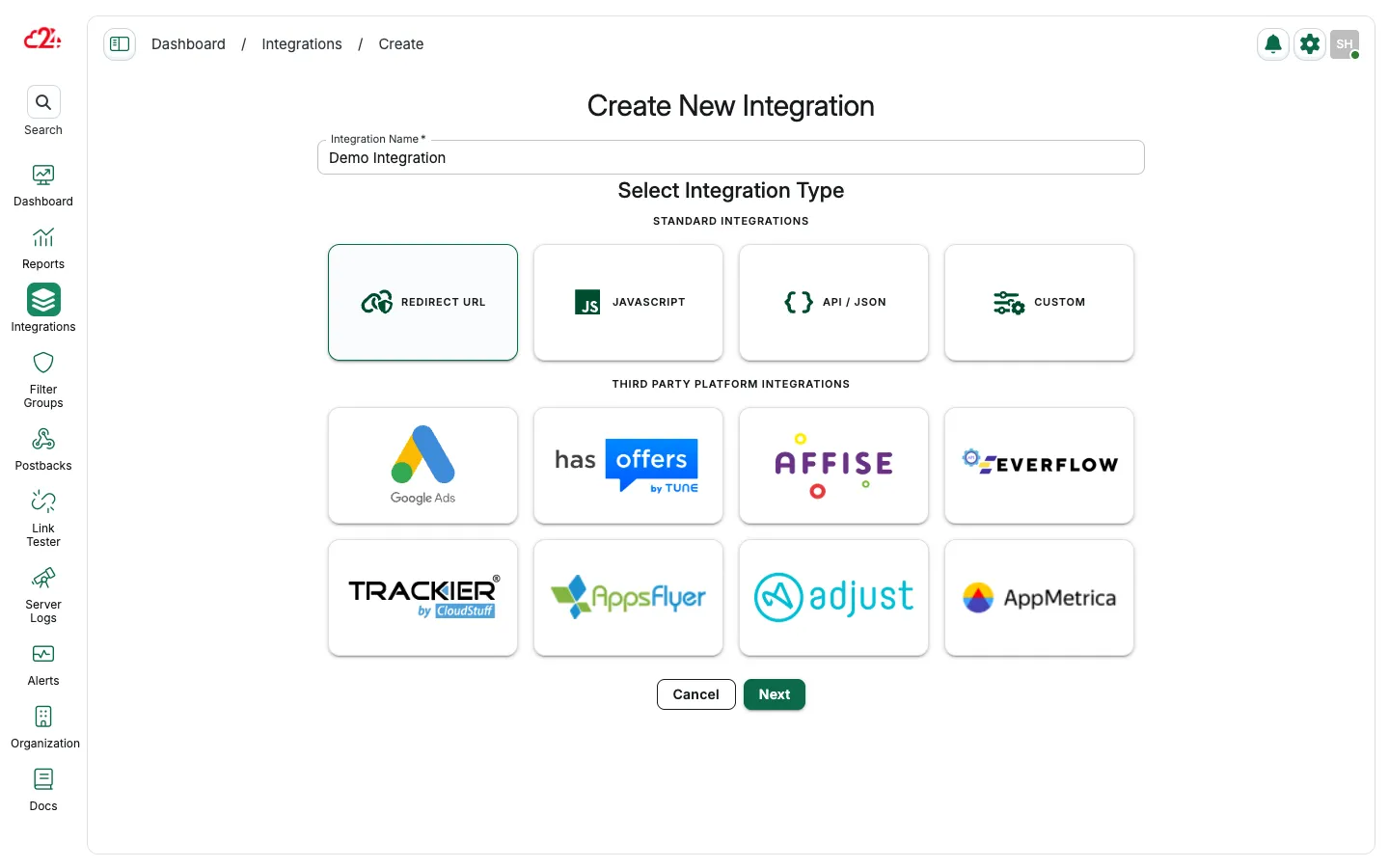
Configure integration details
Section titled “Configure integration details”-
Provide a Title (it can be edited also later).
-
Set Integration Type to
HasOffers
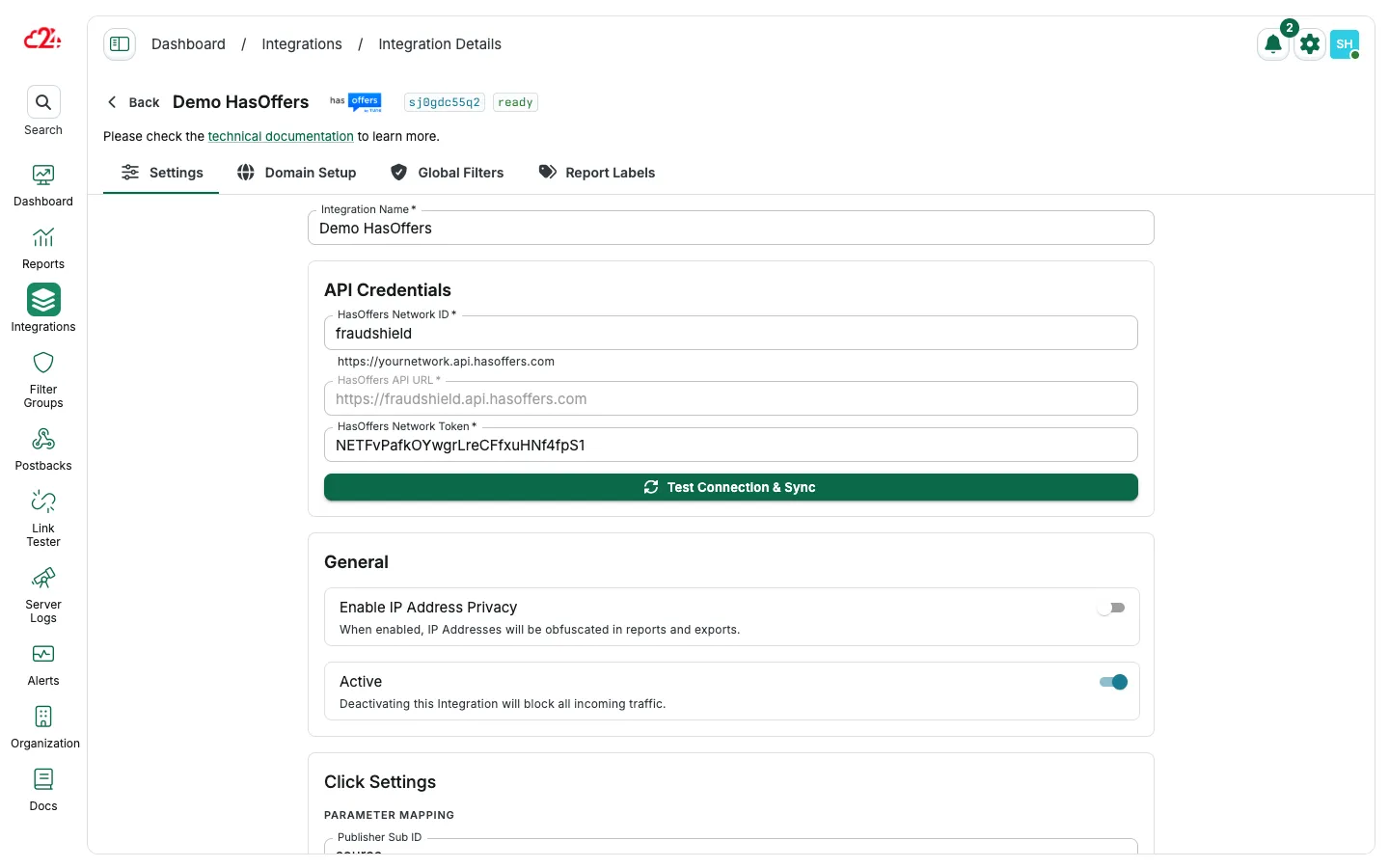
Input HasOffers credentials
Section titled “Input HasOffers credentials”-
In the General tab, enter your
HasOffers Network IDandAPI Key. -
Click Synchronize and then Save (repeat the sync in case it shows an error at first).
-
Optionally, specify Blacklisted Sources (excluded from importing) or Whitelisted Sources (only these will be imported).
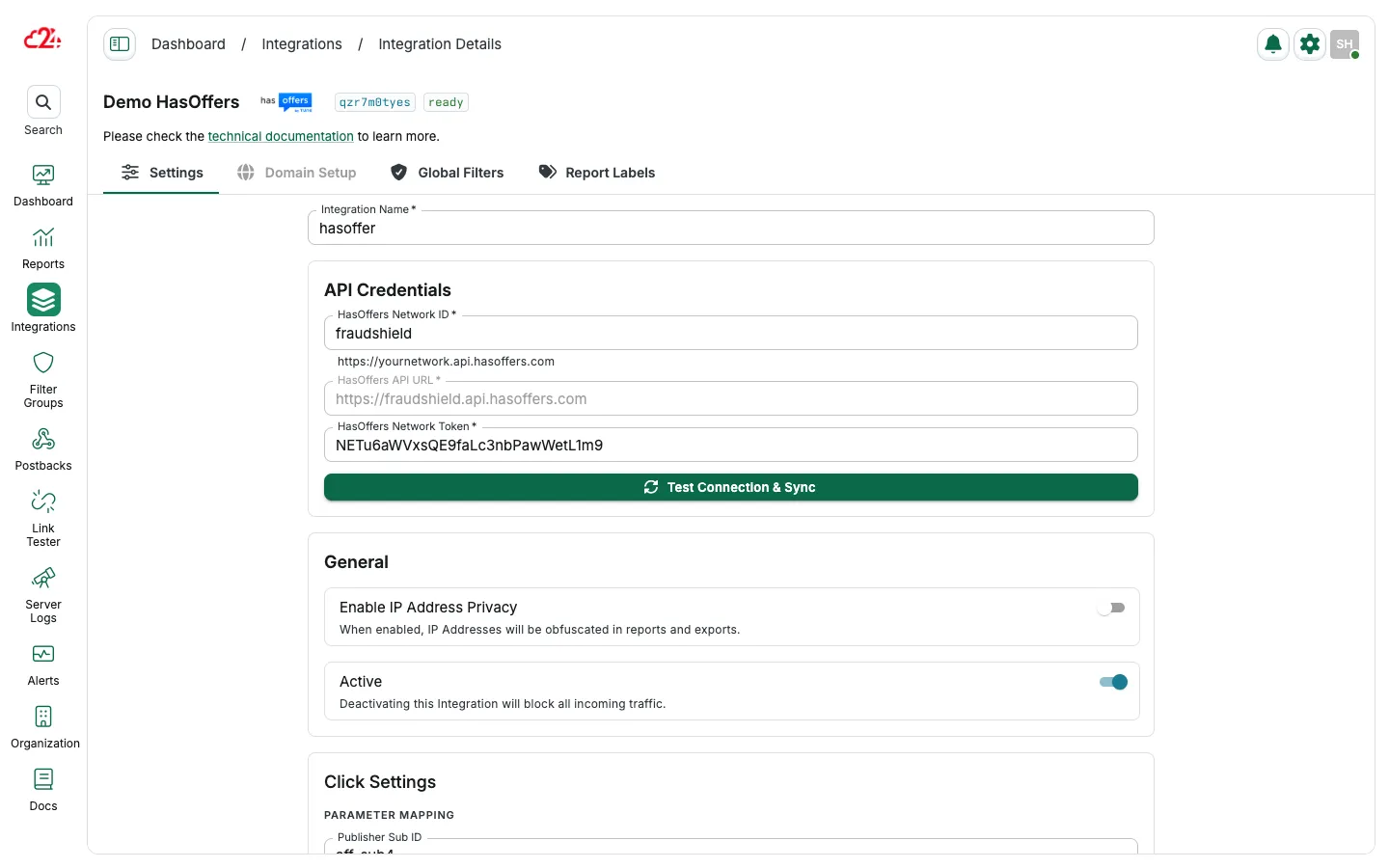
Click screening configuration
Section titled “Click screening configuration”- Adsecurity Tracking Domain: select the tracking domain used in Tune HasOffers.
- Parameter mapping: map the parameter to match the ones used in HasOffers platform (publisher subid, device id, etc).
- Send approved clicks to: select a domain to be used to redirect the approved clicks to the offer.
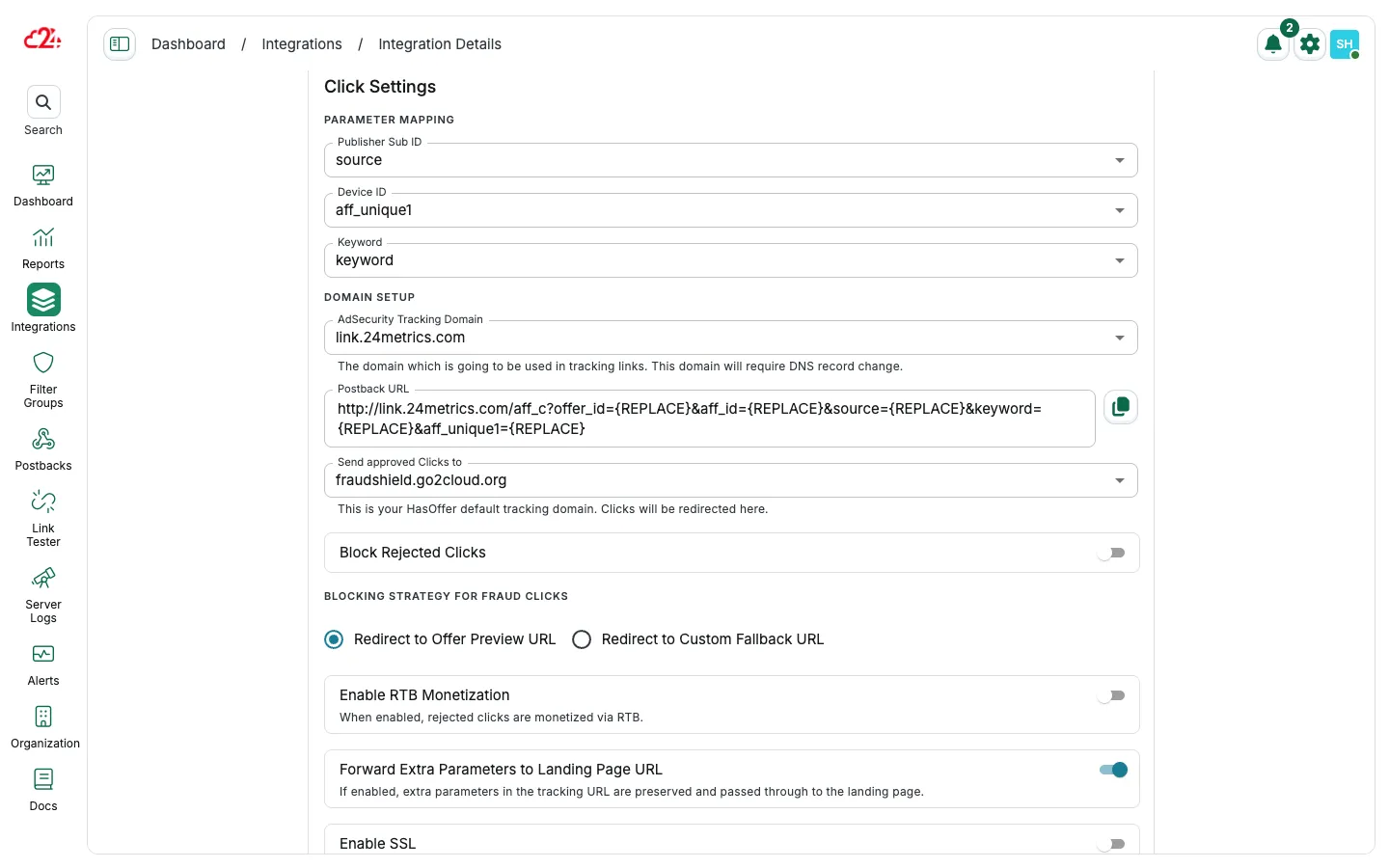
Decide how to handle rejected clicks:
- Block (show a blank page).
- Redirect to a Custom Fallback URL.
- Redirect to the Offer Preview URL defined in Tune HasOffers (recommended).
Set up conversion screening
Section titled “Set up conversion screening”-
In the Conversions tab, enable Conversions Import to track conversions.
-
Platform Conversion Syncing: switch this option On if you want to update the Conversions Status in HasOffers after the screening in 24metrics.
-
Map the parameter to align the conversion data from HasOffers.
Domain setup
Section titled “Domain setup”This step is only required if click screening is also implemented. For conversion screening it is not necessary to set a custom domain. To continue with the Custom Domain setup for click fraud screening, follow the next steps:
- Access the Domain Setup Tab.
- Copy the CNAMES listed inside the section.
- Go to your domain hosting login page.
- Login to the Control Panel.
- Identify the DNS Records setup in the menu.
- Add the CNAMEs from 24metrics.
Once the setup is complete, the connection between Tune HasOffers and 24metrics is established and the clicks and conversions can be screened using Filter Groups > Filter Groups Management. Select this integration and edit the Global row for fallback rules, or create source-specific groups. The integration’s Global Filters tab also opens the default filters. See Configure filter groups for settings and saving.
By completing these steps, you’ll successfully integrate HasOffers with 24metrics AdSecurity Platform, enhancing your affiliate tracking with advanced fraud detection.
Whitelist our IPs
Section titled “Whitelist our IPs”Allowlist the 24metrics IP addresses used for conversion imports and postback calls. See Server IP allowlist for the current list.