

Account settings
Use Organization to manage account settings, users and API access. Available actions depend on your permissions and account access.
Structure
Section titled “Structure”- Users Management: manage users and roles and, as an organization owner, API keys.
- Plan Management: owner-only plan management, separate from Settings.
- Settings: organization details, invoicing, payment and custom SMTP settings.
- Referral Program: access the referral program.
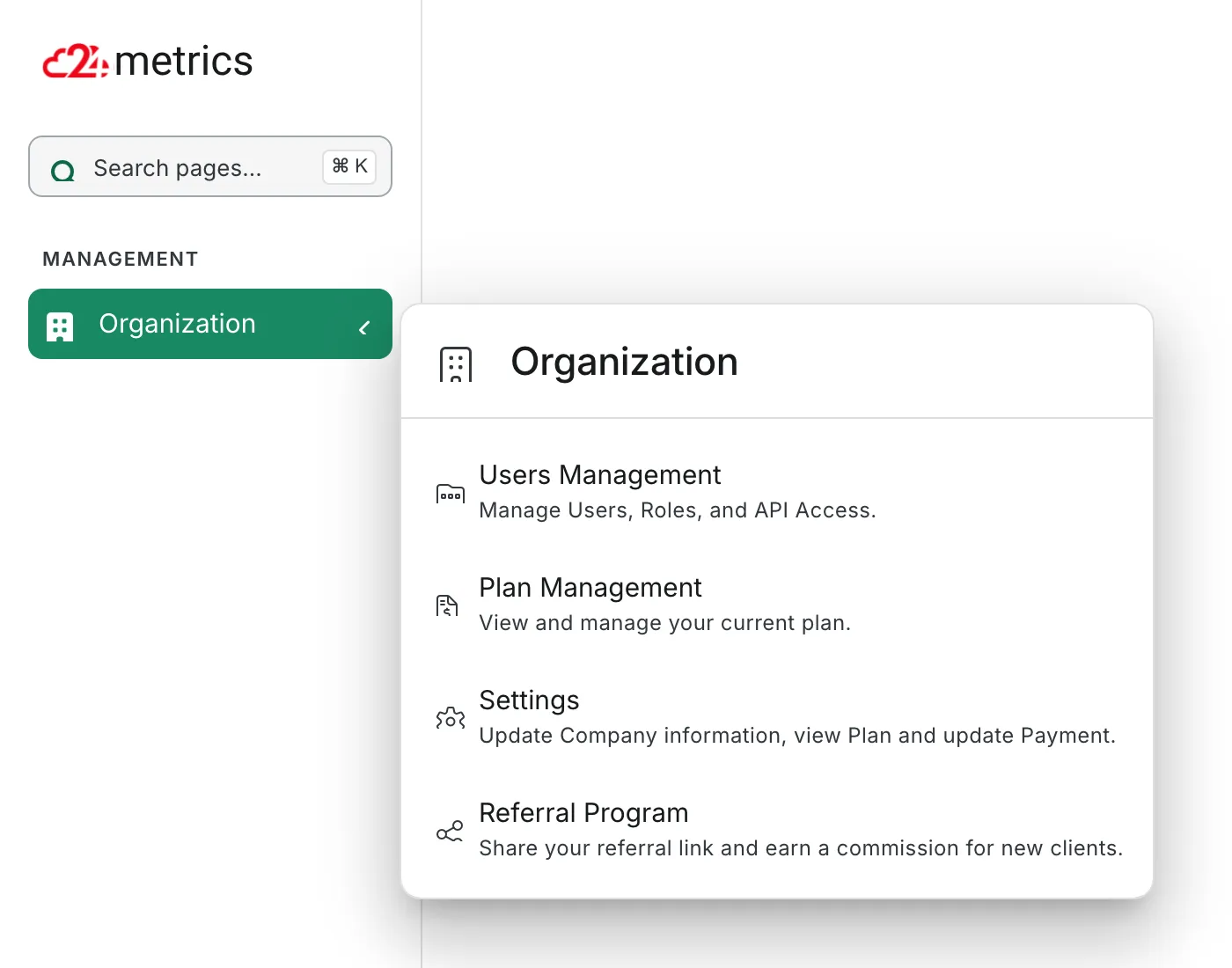
Illustrative Organization navigation for an organization owner.
Settings and invoicing
Section titled “Settings and invoicing”Open Organization → Settings. The tabs are General, Invoicing, Payment and Custom SMTP.
General displays organization and plan details. Organization Read access permits viewing General; organization Write access is needed for Invoicing and Payment. This does not grant access to owner-only Plan Management.
To update invoice details, open Invoicing, not General. Review the company name, business type, address, invoicing email, VAT and currency fields.
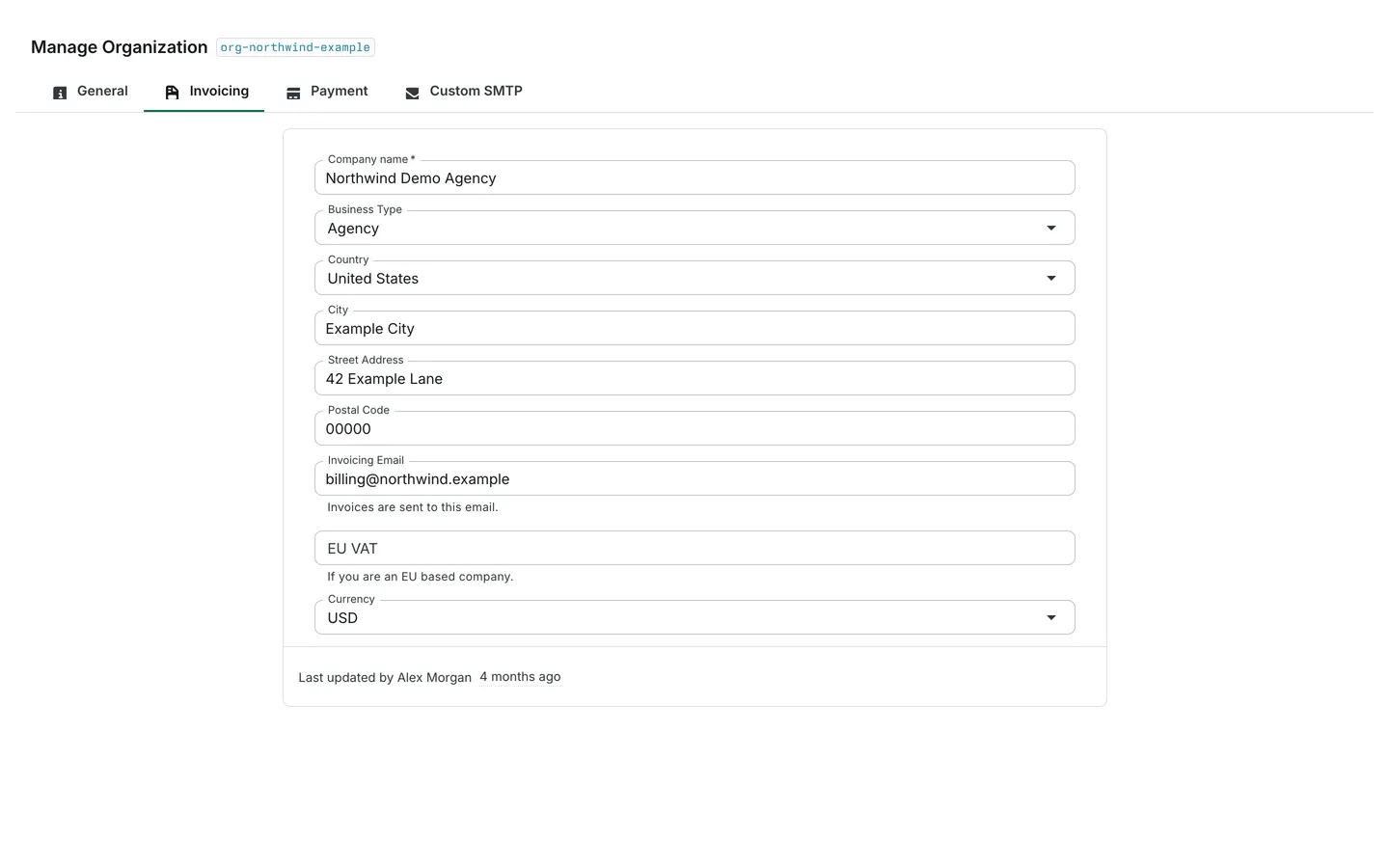
Illustrative Invoicing settings for fictional Northwind Demo Agency.
API keys
Section titled “API keys”You must be an Organization Owner to manage organization API keys. A member’s API Keys scope does not grant access to this owner-only feature. These keys are separate from an integration’s secure code.
- Open Organization → Users Management.
- Select API Keys.
- Click Create.
- Enter a Name and set each resource to Read, Write or None. Grant only the access your application needs.
- Click Save to create the key.
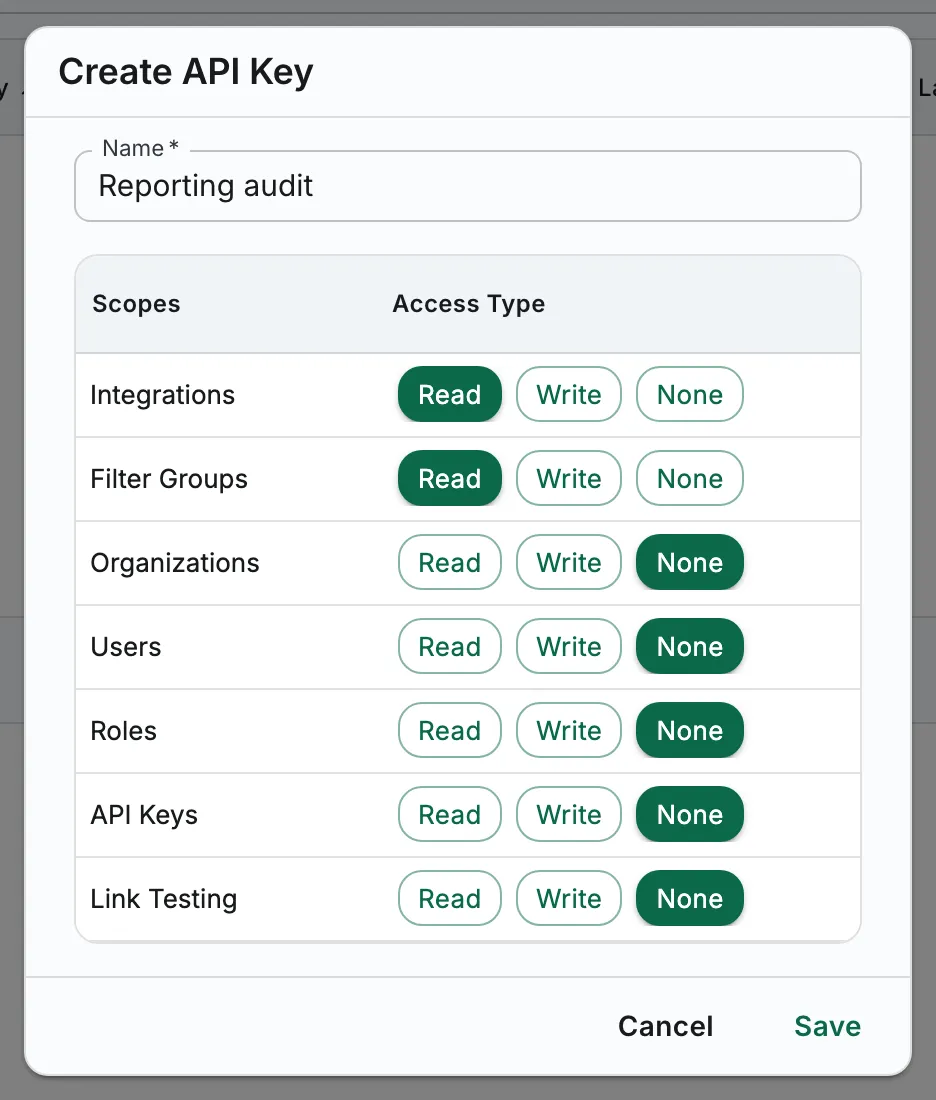
Illustrative Create API Key dialog before Save; no secret is shown. The dialog is expanded to show all seven resource rows.
The key is generated when you save, not while filling in the creation dialog. Treat it as a secret: keep it out of screenshots, shared reports and support messages.
Next, create a role and add a member, or contact support about account access.