

CSV conversion fraud scanner
The feature labeled Conversion CSV Import screens historical conversion records from an XLSX workbook, not a CSV upload. Use the current template and review recorded outcomes without treating rejection as independent proof of fraud.
Purpose of CSV conversion fraud scanner
Section titled “Purpose of CSV conversion fraud scanner”Review historical records with the fields available in your workbook. This is a new screening run, not a guarantee of reproducing original decisions or timestamps.
What it solves
Section titled “What it solves”Use a dedicated review to investigate a disputed batch or compare configured checks against available historical data. Results depend on the input and configuration, not a promised fraud-detection rate.
How it works
Section titled “How it works”You need an eligible Advanced, Enterprise, or Custom plan, a supported API/Custom integration, permission to configure it when necessary, and no other scan in progress on that integration.
Export your data
Section titled “Export your data”Prepare the first worksheet using the current customer template. Keep its headers unchanged rather than rearranging or removing them.
| Header | Requirement |
|---|---|
offer |
Required |
publisher |
Required |
conversion_ip |
Required valid full IP address, not truncated |
advertiser |
Optional |
session_time |
Optional numeric click-to-conversion interval in seconds |
user_agent |
Optional |
referer |
Optional |
The UI accepts XLSX up to 100 MB; the backend limit is 1,000,000 non-empty data rows. These are separate constraints. Do not add administrator-only timestamp or device fields to the normal customer template.
Create an API integration for import
Section titled “Create an API integration for import”- Open integration setup and enter a name, such as Historical review.
- Select API / JSON.
- Use Save & Proceed To Setup and complete the integration setup before importing.
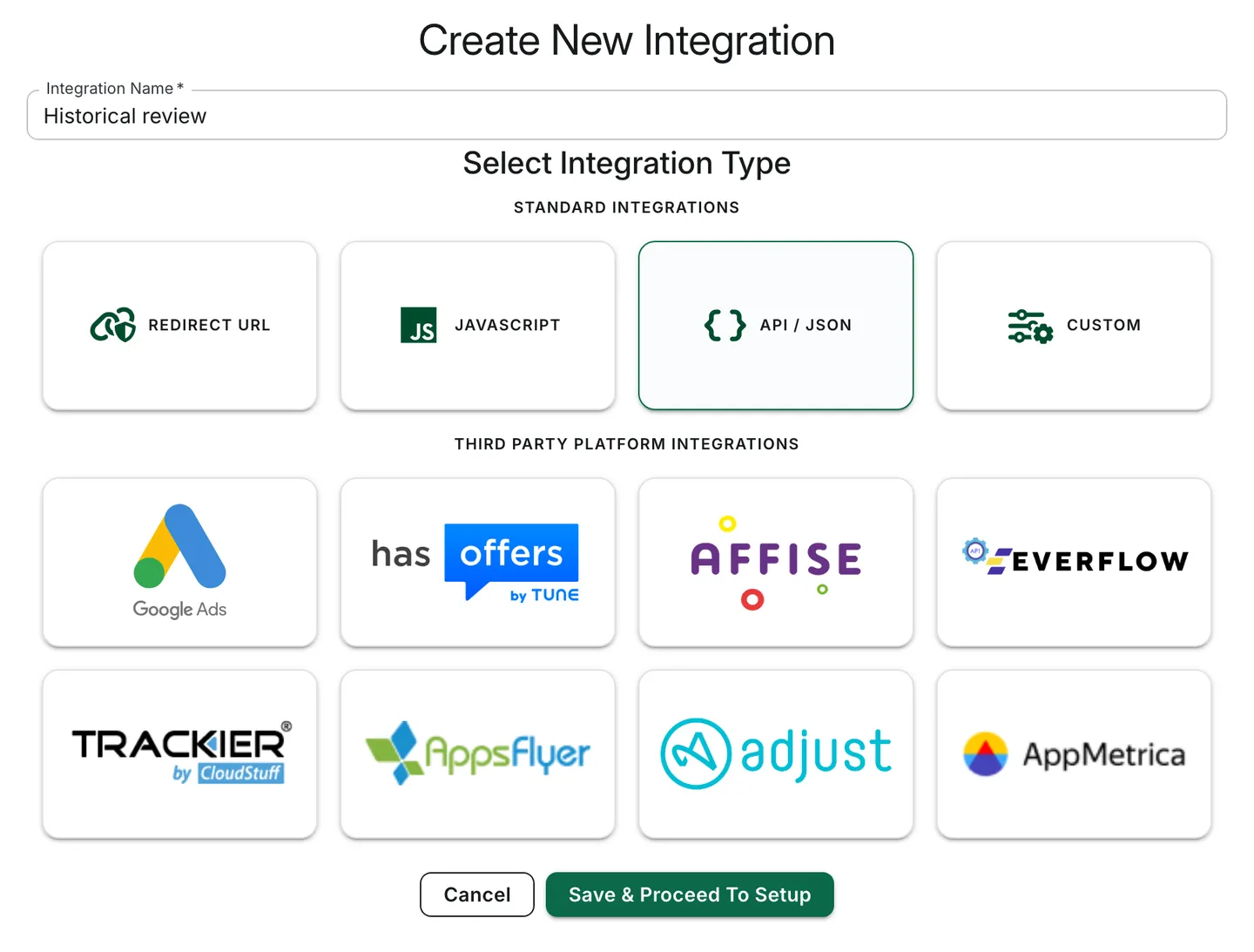
Illustrative synthetic setup before saving.
A dedicated integration separates report scope and configuration; it does not guarantee absence of downstream side effects. An integration secure code is not an Organization API key.
Configure filters
Section titled “Configure filters”Open the integration’s Global Filters tab and select Conversions. Choose checks relevant to the available inputs. Configure each drawer, select Done, then use the page-level Save changes action.
Global filters are the fallback. Use Filter Groups for source-specific matching. Review bot checks, VPN and proxy checks, and session time only when the provided fields support the investigation.
Run the import
Section titled “Run the import”- Open Reports → Bulk Conversions Import. The page heading is Conversion CSV Import.
- Select the dedicated integration and use Download Template to obtain the current template.
- Fill the XLSX workbook with valid records, leaving the template structure unchanged.
- Upload the workbook and select Start Import when available.
- Monitor asynchronous progress, processed/total counters, and any errors. Resolve input errors before retrying; do not submit a second scan while one is active.
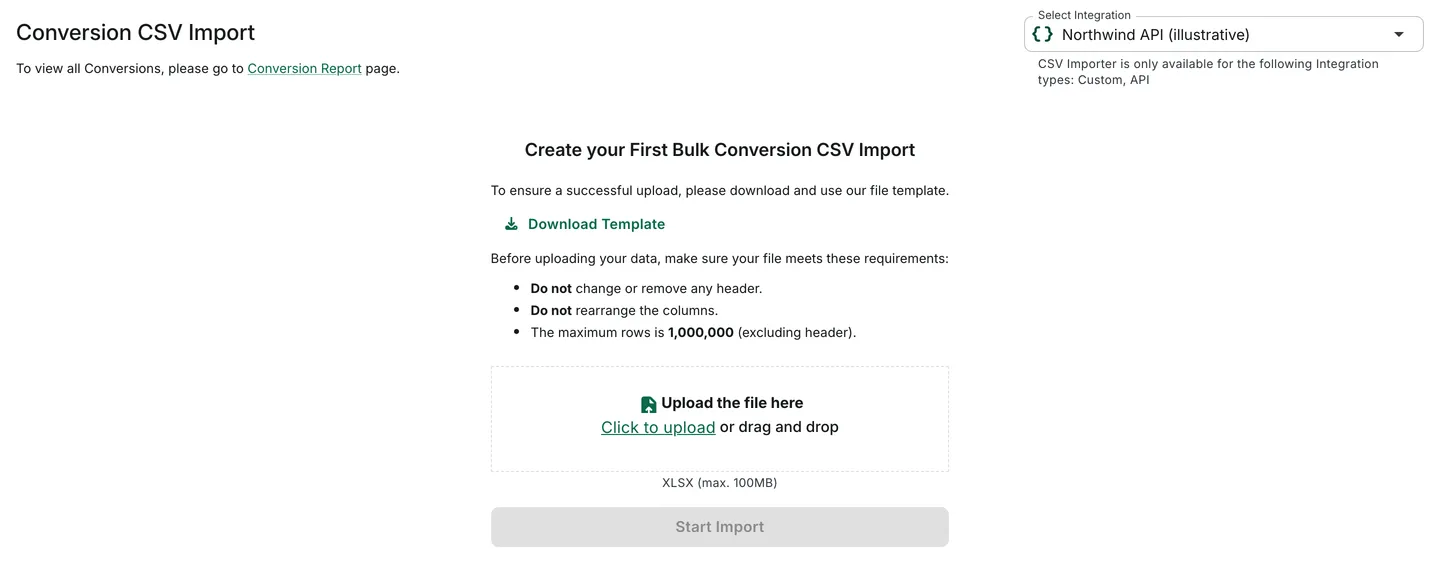
Illustrative synthetic first-use state. Start Import stays disabled until you add a file.
Use cases
Section titled “Use cases”For a fictional Northwind historical review, prepare only records relevant to the disputed offer and publisher.
Review results
Section titled “Review results”When processing completes, inspect Conversion reports within the dedicated integration. Compare selected reasons with all recorded Rejections; overlapping reason occurrences are not unique affected records. No instant completion, historical timestamp preservation, or payment conclusion is guaranteed.
Best practices
Section titled “Best practices”Use full IP addresses, protect identifiers, and select filters appropriate to your data. Obtain the current template through the product and keep it unchanged, including its header order and columns.
Summary
Section titled “Summary”Prepare the supported XLSX inputs, configure the dedicated integration, start one scan, then monitor progress and review results. For follow-up, compare Overview reports and Traffic insights without equating recorded rejections with proven fraud.