

JavaScript integration
The Javascript Integration with 24metrics enables real-time screening of clicks, conversions, and impressions directly on an offer’s landing page. This integration also facilitates advanced user fingerprinting for enhanced fraud detection and more accurate results. The fingerprinting process provides additional data points, improving deduplication and enhancing the click and conversion filters for better matching.
Creating the integration
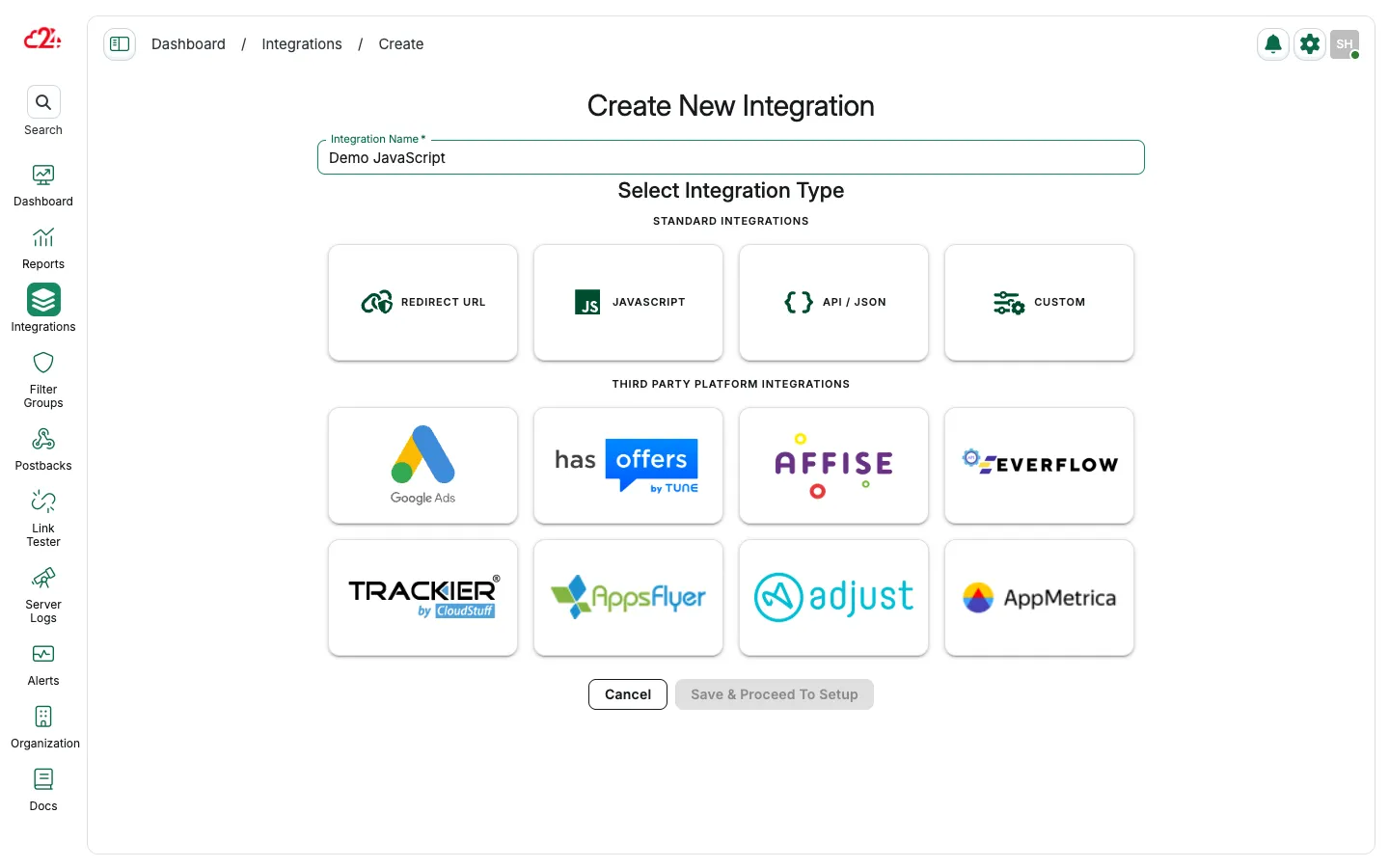
Section titled “Creating the integration”- Open Integrations and click Create.
- Enter an Integration Name (for example,
Demo JavaScript). - Under Select Integration Type, choose Javascript.
- Click Save & Proceed To Setup.
Integration settings
Section titled “Integration settings”- Javascript Integration Name: Assign a name to the integration.
- Approved Clicks Redirect (optional): Assign an URL where approved clicks will be redirected.
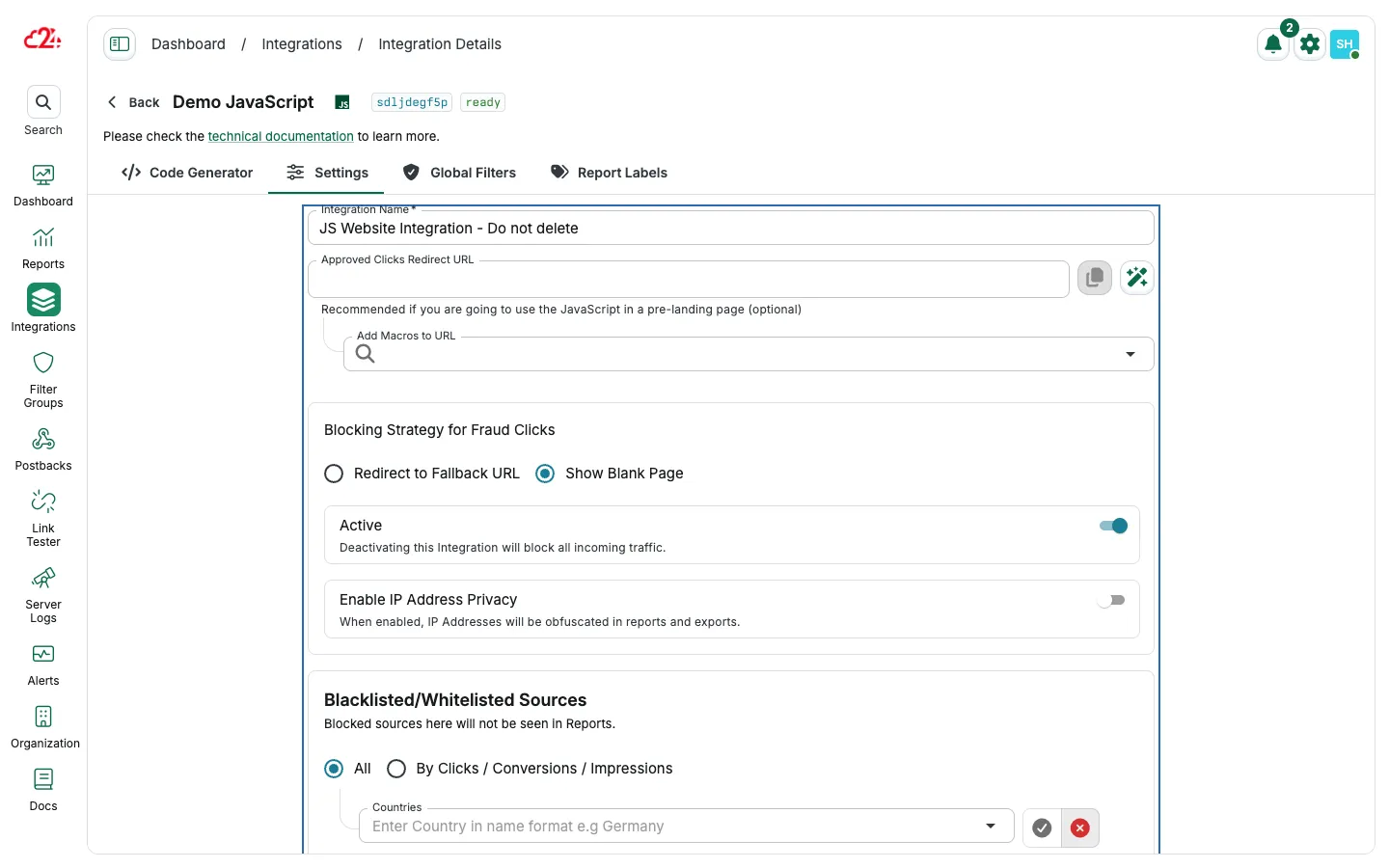
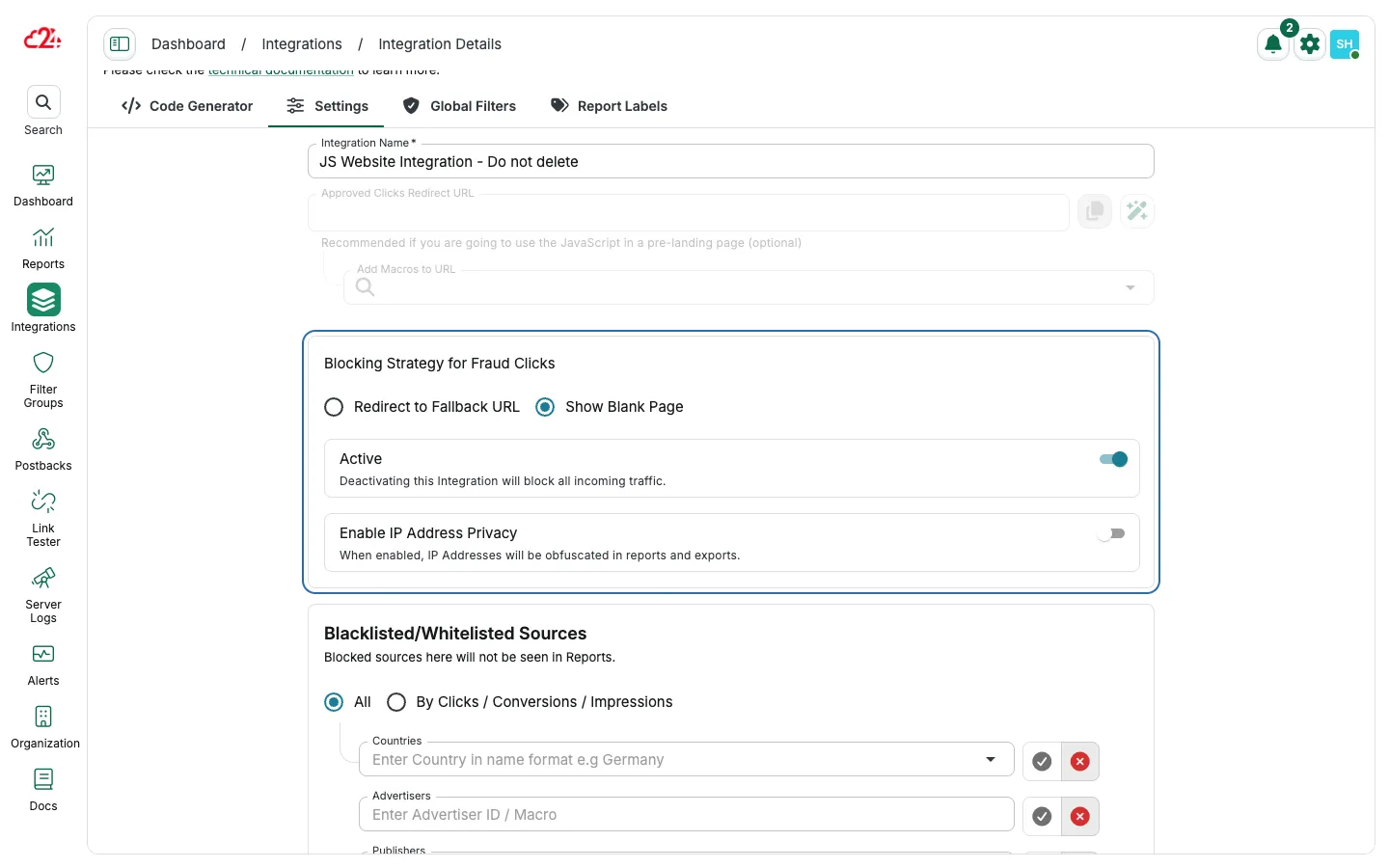
- Blocking Strategy for Fraud Clicks:
- Redirect to Fallback: rejected clicks will be redirected to a custom URL.
- Blank Page: rejected clicks will be redirected to a blank page.
- Active On/Off: Deactivating the integration will stop the screening of all incoming traffic.
- IP Privacy: When enabled, IP addresses will be obfuscated in reports and exports.
- Always use Current Time for clicks: If disabled, server time (UTC) is always used. The parameter
click_timewill be discarded even if used. - Always use Current Time for conversions: If disabled, server time (UTC) is always used. The parameter
conversion_timewill be discarded even if used.
Code generator guide
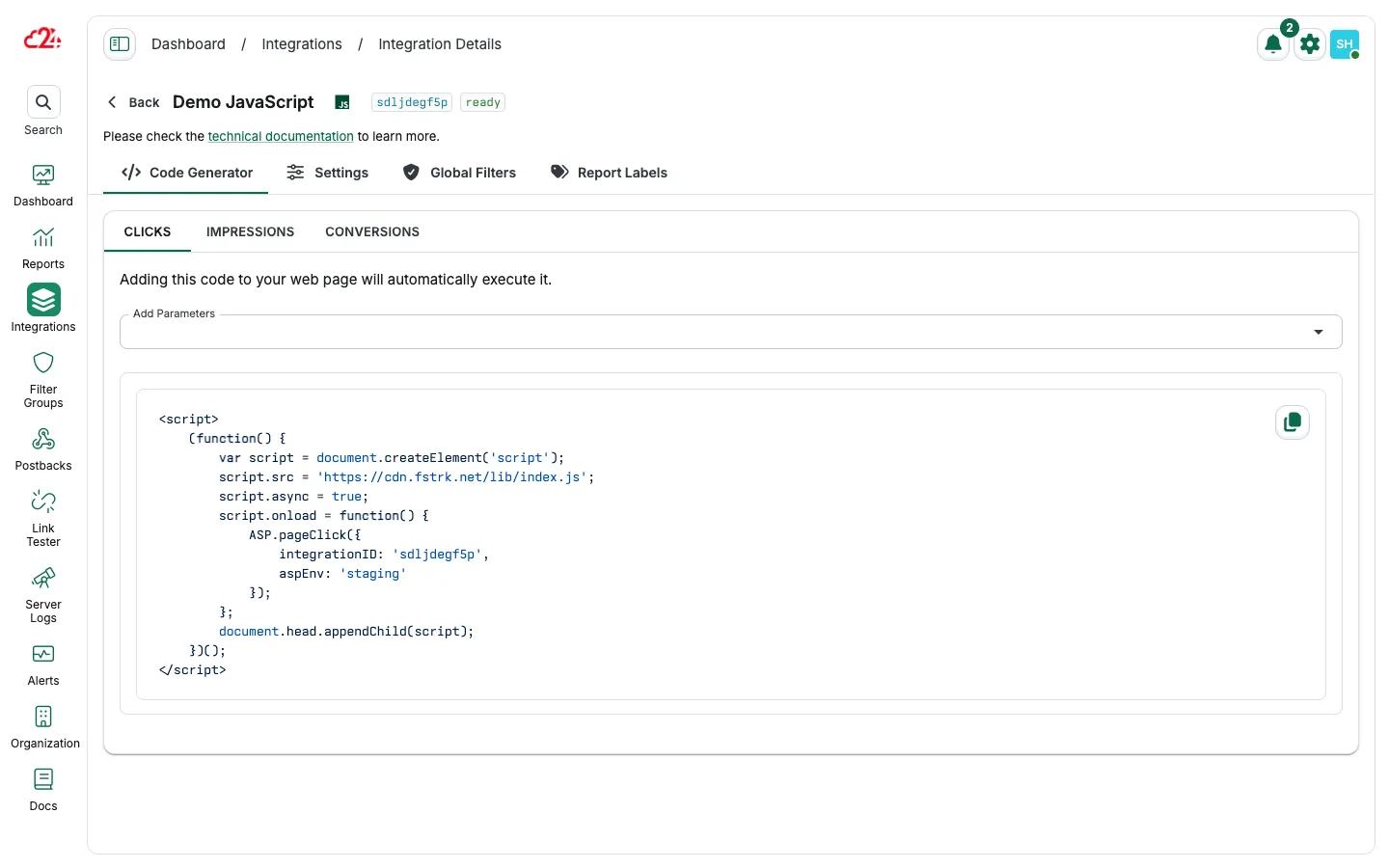
Section titled “Code generator guide”Generate a Javascript Integration script for real-time screening of clicks and conversions by selecting the desired options and parameters. This process works similarly for generating scripts for clicks, impressions, and conversions.
Clicks and impressions script options
Section titled “Clicks and impressions script options”Adding this code to your web page will automatically execute it:
- Define the additional parameters
- Copy the script
- Embed it on the landing page in the
<body>HTML section
Alternatively, the Offer and Publisher values can be passed to utm_parameters:
- utm_campaign=OFFER_VALUE
- utm_source=PUBLISHER_VALUE
How it works
Section titled “How it works”-
How Parameters are passed to our system:
- If Google Tag Manager is used,
utm_parameters are mapped automatically. - All other parameters of the current page are passed to our system. Non-standard parameters will be saved as Extra Parameters in the report.
- If Google Tag Manager is used,
-
Custom Coding Requirement:
- If you need to dynamically change the parameters such as: Offer, Advertiser, Publisher, and Sub IDs, you must add the replacement logic for the
{TOKENS}in the code.
- If you need to dynamically change the parameters such as: Offer, Advertiser, Publisher, and Sub IDs, you must add the replacement logic for the
-
How Fraud detection will work:
- Show Blank Page: The code will show a blank page to the user.
- Fallback URL: The code will redirect the user to the defined URL.
- Monitoring Mode: No blocking or redirecting happens, but the click is still marked as rejected in the Reports.
Conversion script with click lookup
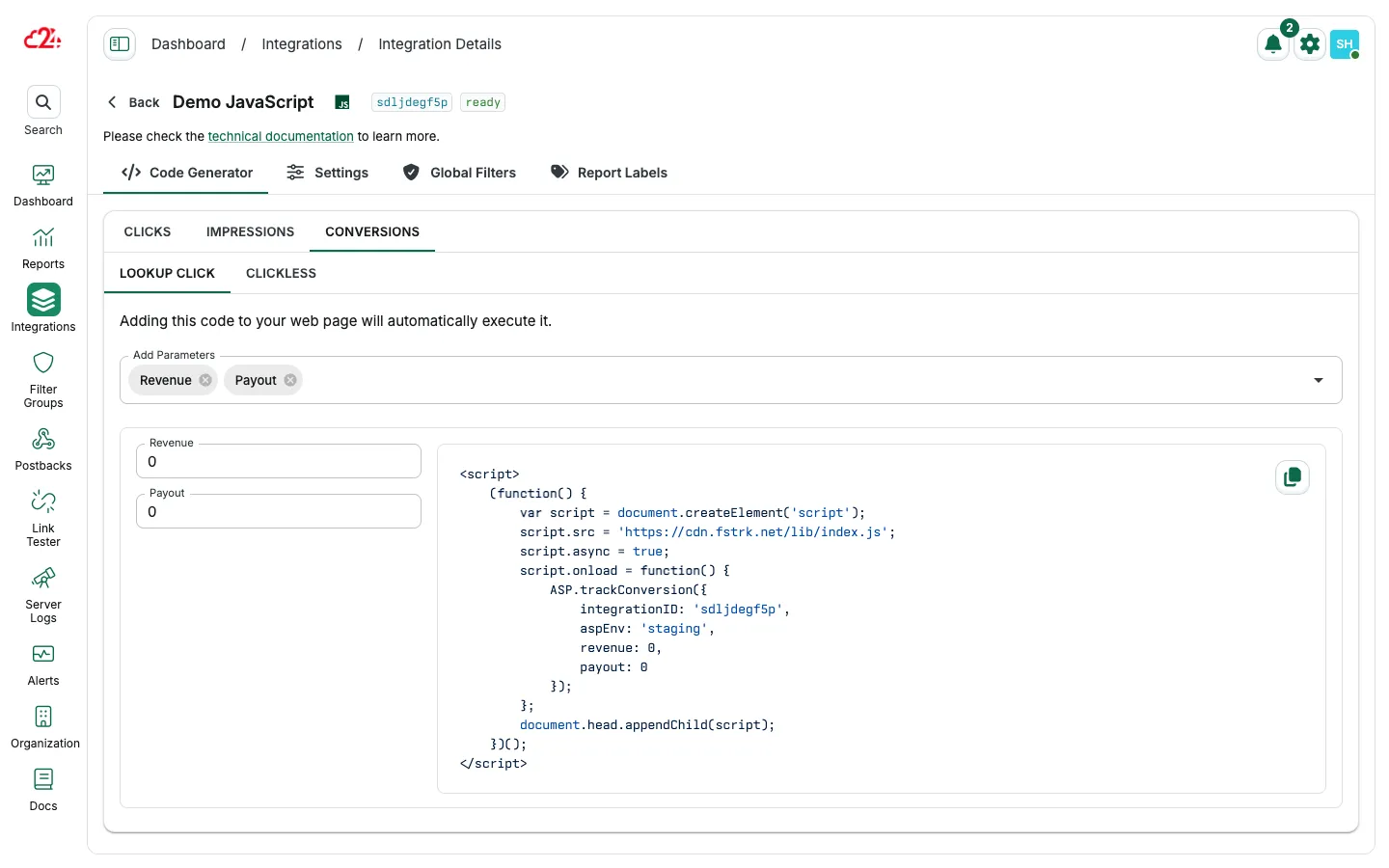
Section titled “Conversion script with click lookup”The Javascript Integration is designed for use when both click and conversion events are configured for fraud screening. It supports conversion validation through click-level lookup, using the provided transaction_id to search for a matching click.
How Parameters are passed to our system:
- With Click Lookup, the system will automatically find the stored click and create a new conversion.
- Custom coding is required to dynamically replace parameters like Revenue, Payout, and Purchase Value.
- Non-standard parameters will be saved as Extra Parameters in the report.
Conversion script for clickless conversions
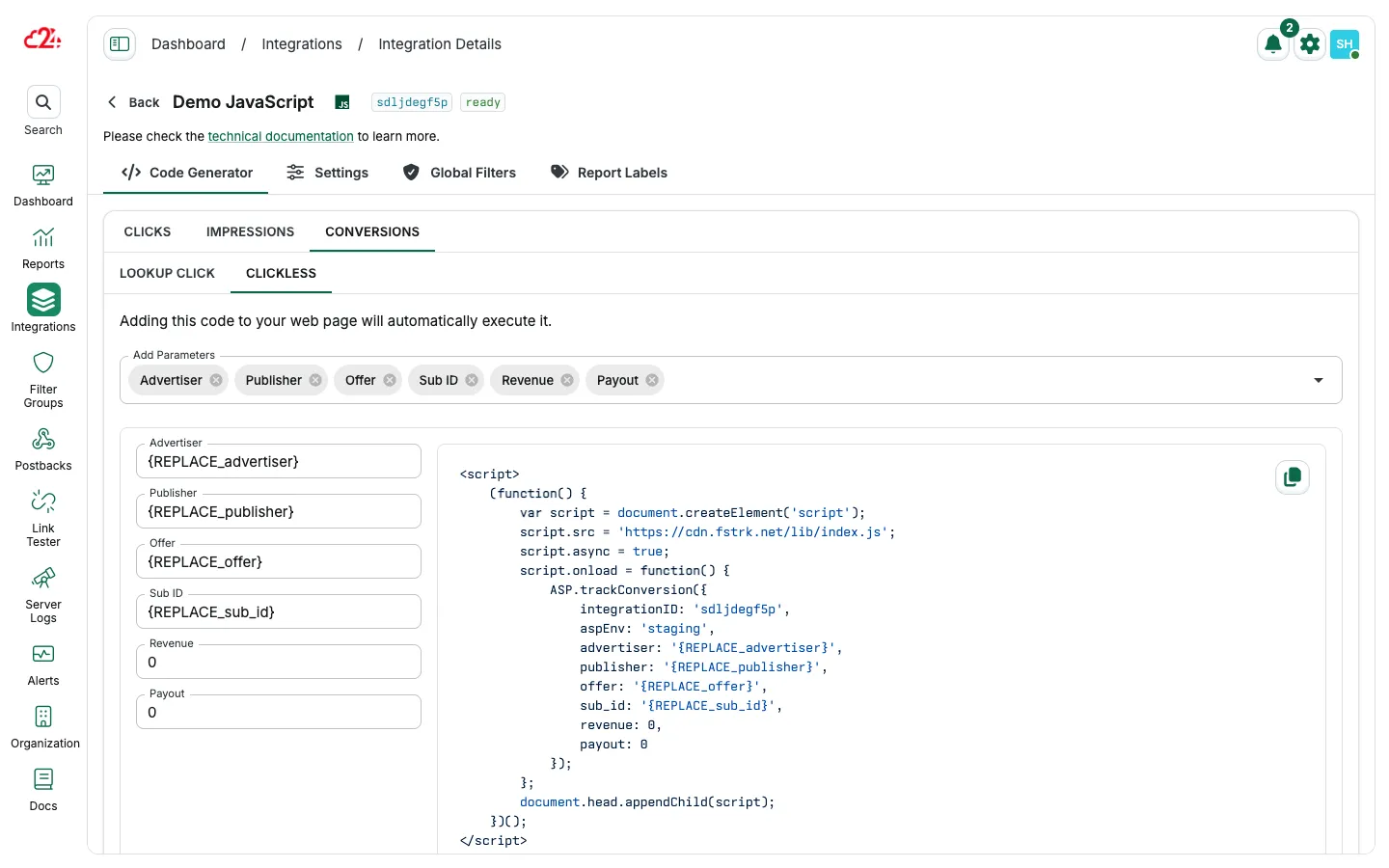
Section titled “Conversion script for clickless conversions”The Javascript Integration code generator for clickless conversion screening provides a JavaScript snippet that enables real-time validation and fraud screening. Unlike click lookup methods, this approach processes incoming data on the fly.
To maximize detection accuracy, include as much contextual info as possible: Offer, Publisher, SubID, Payout, Revenue, Referrer URL, etc.
Custom Coding Requirement:
- You must add replacement logic for
{TOKENS}to dynamically pass tracking parameters. - Required tracking parameters: Offer, Advertiser, Publisher, and Sub IDs.
How to pass Parameters to track Conversion:
- Custom coding is needed to dynamically replace Revenue, Payout, and Purchase Value.
- Non-standard parameters will be saved as Extra Parameters in the report.
Report labels
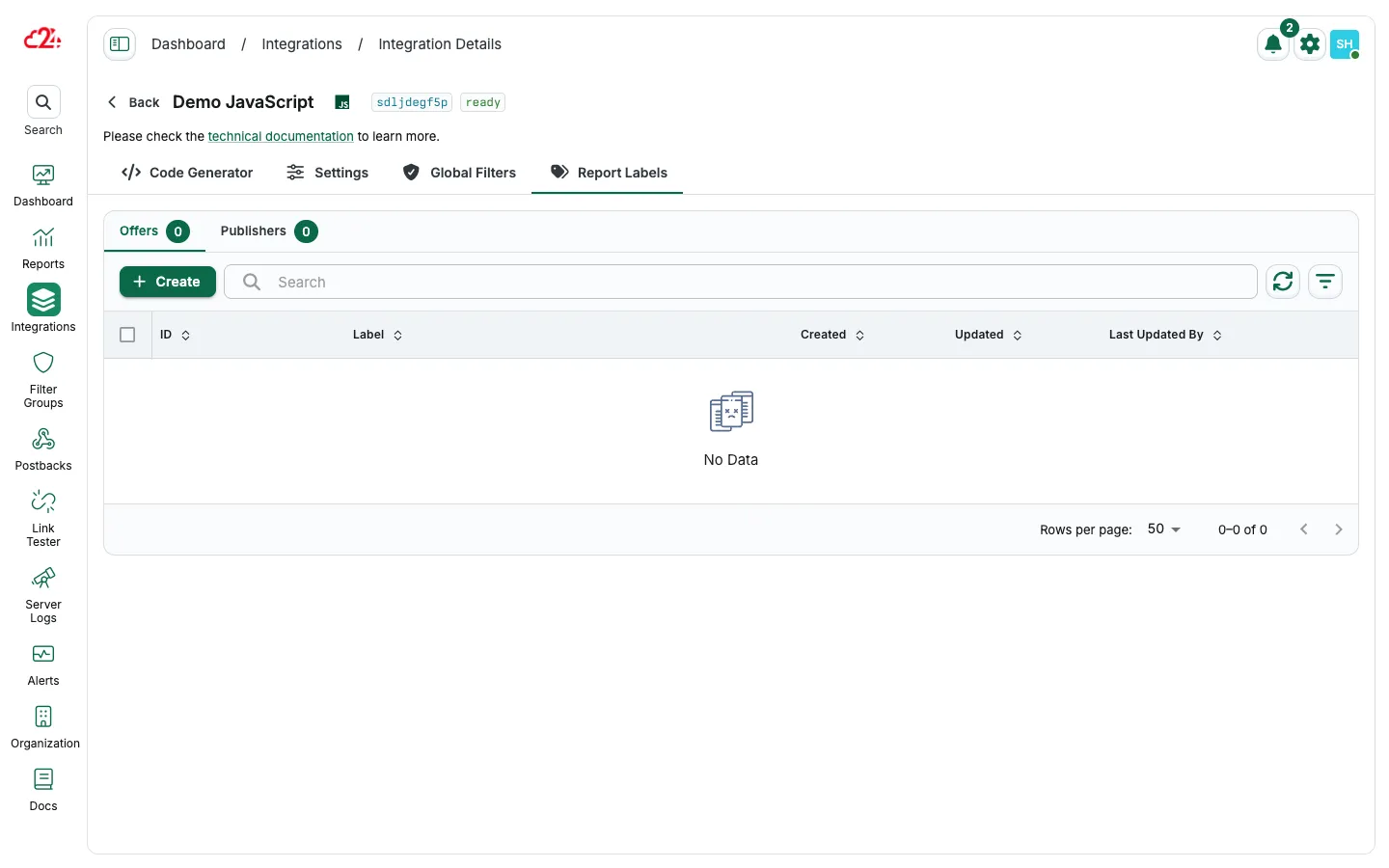
Section titled “Report labels”Labels allow users to assign custom, human-readable names to offer or publisher IDs. Instead of raw IDs, assigned labels will be shown in reports for better clarity.
Labels can be applied individually to specific offers or publishers.
Advanced coding
Section titled “Advanced coding”If you need more control over the flow of the JavaScript code, you can use core functions in the library instead of following the Code Generator. Please see our JS SDK Comprehensive Guide.