

Conversion reports
Conversion Report includes conversion and event fields in one 24metrics report. You need read access to the integration. Event data does not require a separate Events Report route or pending-event approval workflow.
Accessing the report
Section titled “Accessing the report”- Open Reports → Conversions Report. The page heading is Conversion Report.
- Select an integration and date range; check the displayed timezone.
- Filter by publisher, offer, Sub ID, event, IP, status, or rejection attributes as needed.
- Use Edit Columns to choose conversion and click times, IPs, session time, event, and rejection fields.
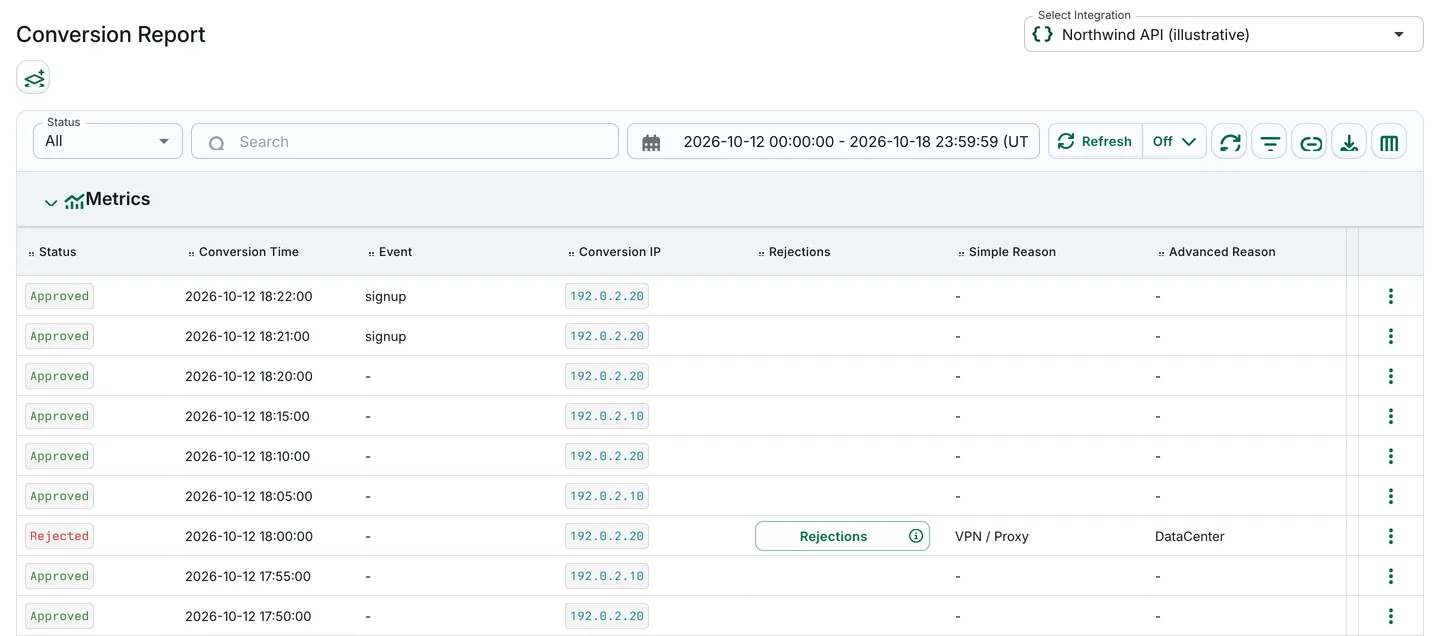
Illustrative synthetic records, not a real incident or payment conclusion. Click Time and Session Time are hidden through Edit Columns for readability.
Key features
Section titled “Key features”Interpret fields separately
Section titled “Interpret fields separately”Conversion Time and Conversion IP describe the conversion; Click Time and Click IP provide related click context where present. Session Time describes the click-to-conversion interval. Event fields belong to these records, not a separate 24metrics Events route.
The top-level status selector hides Pending. Keep Status, Rejection Type (including Throttled where available), Rejected Simple Reason, Rejected Advanced Reason, and the full Rejections list separate. A selected reason is not the only reason that may have triggered. Occurrences can overlap. Rejected does not prove fraud; Approved does not establish payability.
Investigation example
Section titled “Investigation example”For fictional Northwind signup records, compare the event and conversion timestamps, then review session time and recorded reasons on related rows. Check the configured session-time rules and low-session-time anomaly context before interpreting a short interval. Missing click context alone does not prove a clickless attack.
Use Traffic insights for grouped comparisons and Postback logs for HTTP delivery outcomes, which are separate from screening decisions.
Export results
Section titled “Export results”Choose fields with Edit Columns, narrow the date range and filters, then use Export to queue a CSV. Retrieve completed files in Download center.