

Click flooding
Click Flooding limits repeated click traffic from duplicate IPs within a counting window. It applies to clicks, not conversions. The corresponding impression filter is Impression Flooding. Unlike Click Spam, this filter does not use the share of long conversion sessions as its rejection threshold.
Enable click flooding
Section titled “Enable click flooding”Open Click Flooding in the group’s Filters catalog and turn on Enable Click Flooding Filter. Most customer accounts see the enable switch and impact preview; detailed duplicate limits, grouping and blocking-duration controls require additional access.
The backend’s initial settings allow four duplicate IPs within one hour, scoped by publisher and user agent, with a 12-hour extended rejection period. Existing groups and presets can differ. Review your saved configuration rather than treating these initial values as universal settings.
Preview impact
Section titled “Preview impact”Use Preview impact to estimate flagging against historical traffic before saving:
- Choose Time range, or adjust Start and End in the displayed timezone.
- Choose Timeline bucket. This changes display aggregation, not the filter’s counting window. Follow the maximum preview period shown for that bucket.
- Select Calculate Preview and review the returned estimate. Calculating a preview does not save settings or change live protection.
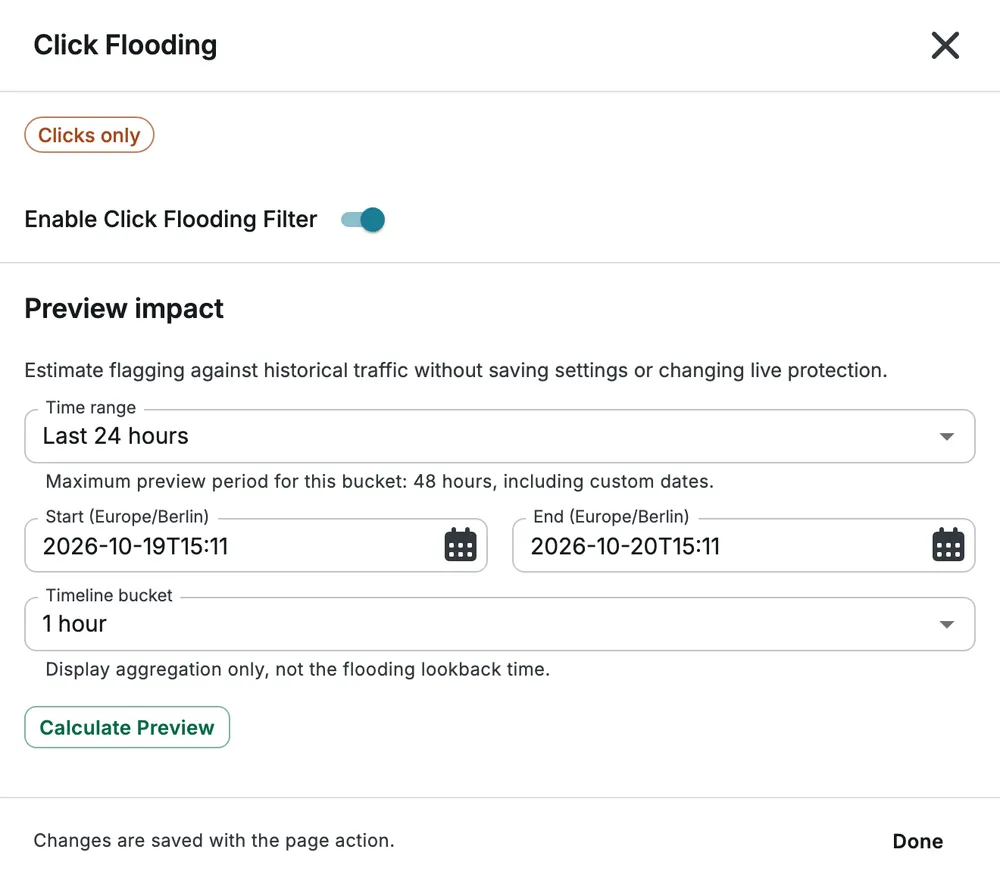
The image shows the preview controls, not a calculated result. To apply the enabled filter, select Done and save the page.
Example and caveat
Section titled “Example and caveat”For a burst of repeated clicks from the same source, compare the historical estimate with normal traffic before enabling blocking. No conversion tracking is needed for the duplicate-IP rule. A long click-to-install time is not the Click Flooding criterion; use Click Spam for that conversion-level pattern.