

Conversion rate
Conversion Rate checks whether a source’s conversion rate is outside configured limits. It applies to conversions and needs both click and conversion data. Optional Block Clicks also rejects further click traffic from sources that fail the rate requirements.
Configure intervals
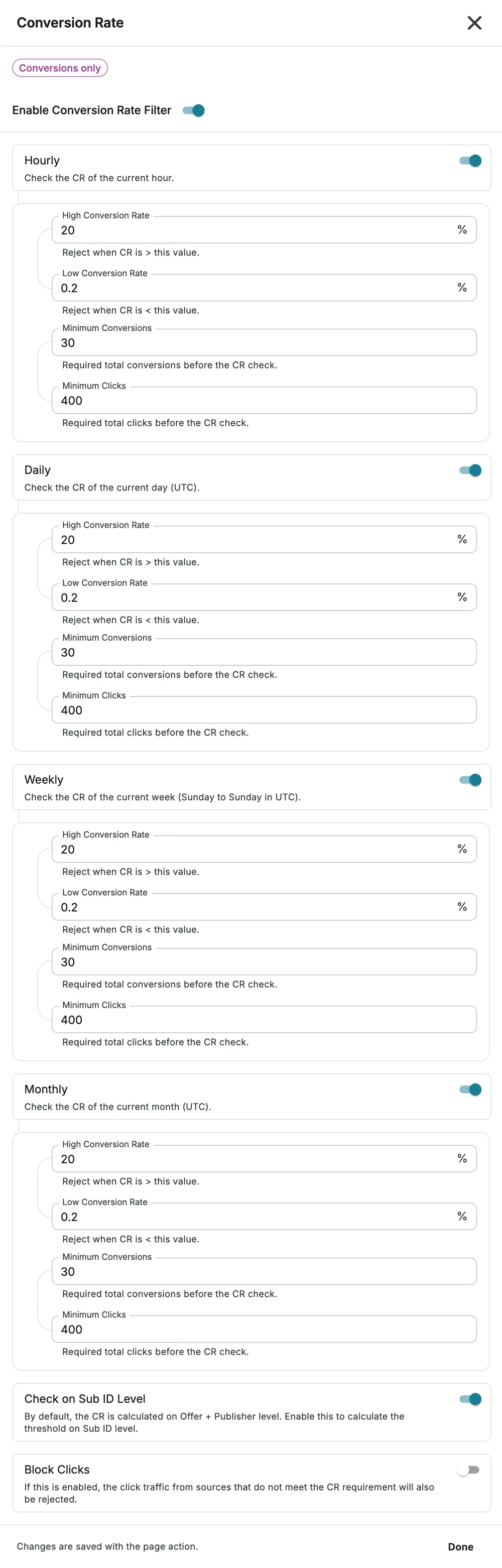
Section titled “Configure intervals”Open Conversion Rate in Filters. Enable at least one of Hourly, Daily, Weekly or Monthly. Each interval has its own settings:
| Control | Meaning |
|---|---|
| High Conversion Rate | Reject when the rate is above this percentage. |
| Low Conversion Rate | Reject when the rate is below this percentage. |
| Minimum Conversions | Conversion sample required before checking the rate. |
| Minimum Clicks | Click sample required before checking the rate. |
Rates must be between 0% and 100%; both minimum counts must be at least 1. The UI keeps the low rate no higher than the high rate. These are current calendar intervals, not arbitrary rolling lookbacks: daily and monthly use UTC, and weekly runs Sunday to Sunday in UTC.
Scope and click blocking
Section titled “Scope and click blocking”By default, rates are scoped to offer and publisher. Check on Sub ID Level adds Sub ID scope. Block Clicks extends rejection to click traffic from the failing source; leave it off if you only intend conversion screening.
Select Done, then save the page. Verify every enabled interval, since changing one interval does not configure the others.
Example setup
Section titled “Example setup”New groups initialize interval values to 20% high, 0.2% low, 30 minimum conversions and 400 minimum clicks. With those values, a source below the sample minimums is not yet evaluated. These are starting values, not recommended targets for every campaign. Match them to your expected rates and review in Monitoring mode.
See Conversions Rejection Threshold to act on rejection share rather than conversion rate.