

Users and roles
Give each Member a custom role with the access they need. Organization Owner is a separate role with owner privileges; only an existing owner can assign ownership.
You need access to Users Management and Roles Write permission to create a custom role. Adding a user separately requires Users Write permission. If management is unavailable for your account, contact support about access.
- Open Organization → Users Management → Roles.
- Click Create.
- Enter a name and description.
- Set each resource to None, Read or Write.
- Click Save.
Permissions
Section titled “Permissions”- None: no access to the resource.
- Read: view the resource without editing it.
- Write: view and edit the resource.
The seven resources are Integrations, Filter Groups, Organizations, Users, Roles, API Keys and Link Testing. Scopes do not override owner-only restrictions: for example, a member cannot manage organization API keys even with the API Keys scope.
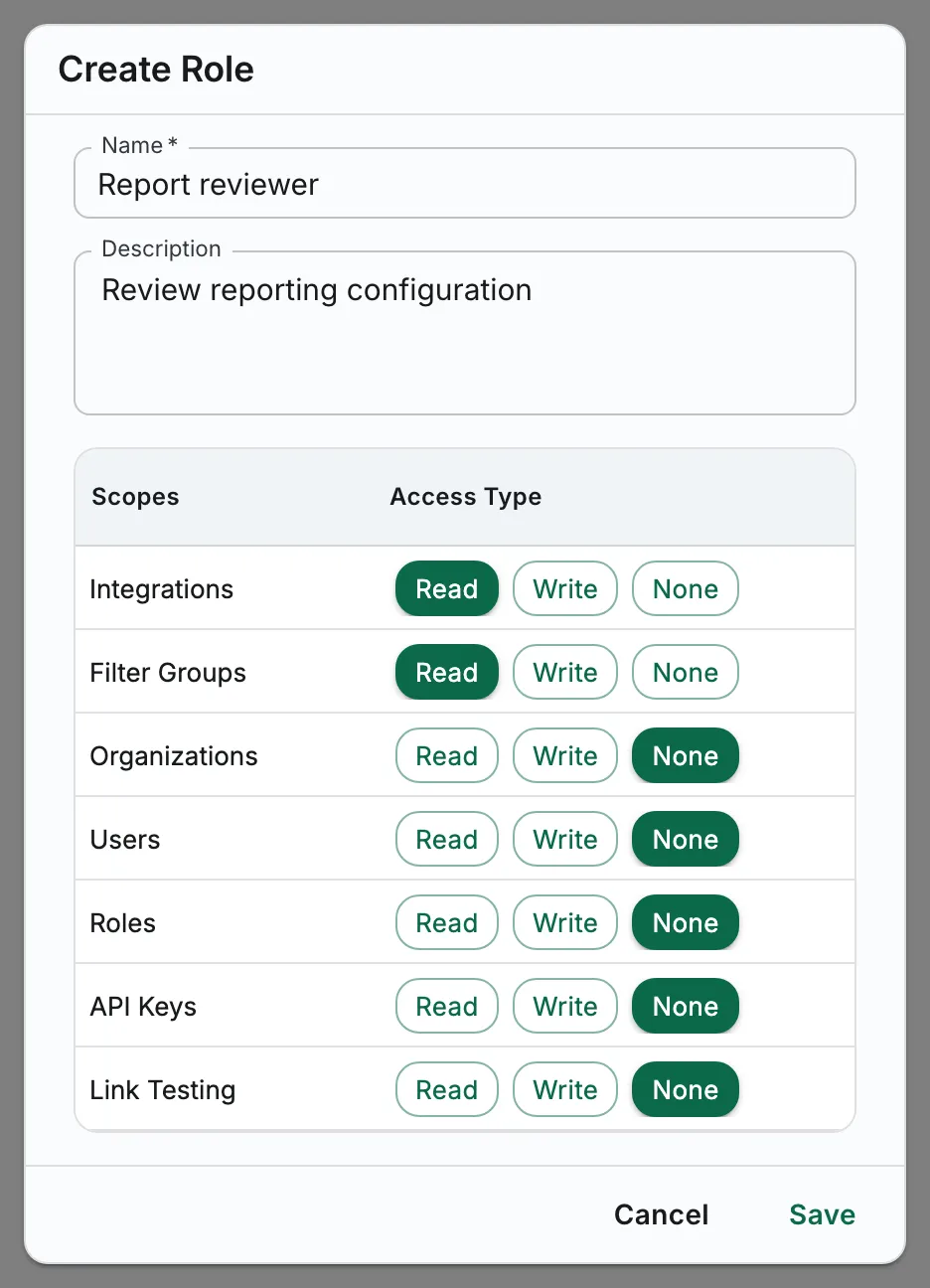
Illustrative Report reviewer custom role, expanded to show all seven resource rows.
After saving, you can select this role when creating a member.
User creation
Section titled “User creation”Before adding a member, create the custom role you want to assign.
- Open Organization → Users Management → Users.
- Click Create to open the full-page Create User form.
- Enter Email, First name and Last name. Review Timezone and the optional Country and Notes fields.
- Select Member, then choose a Custom Role, which is required for members. Only owners can select Organization Owner; an owner does not require a custom role.
- Review User is Active and whether to Send password setup email to this user before submitting.
- Click Create User.
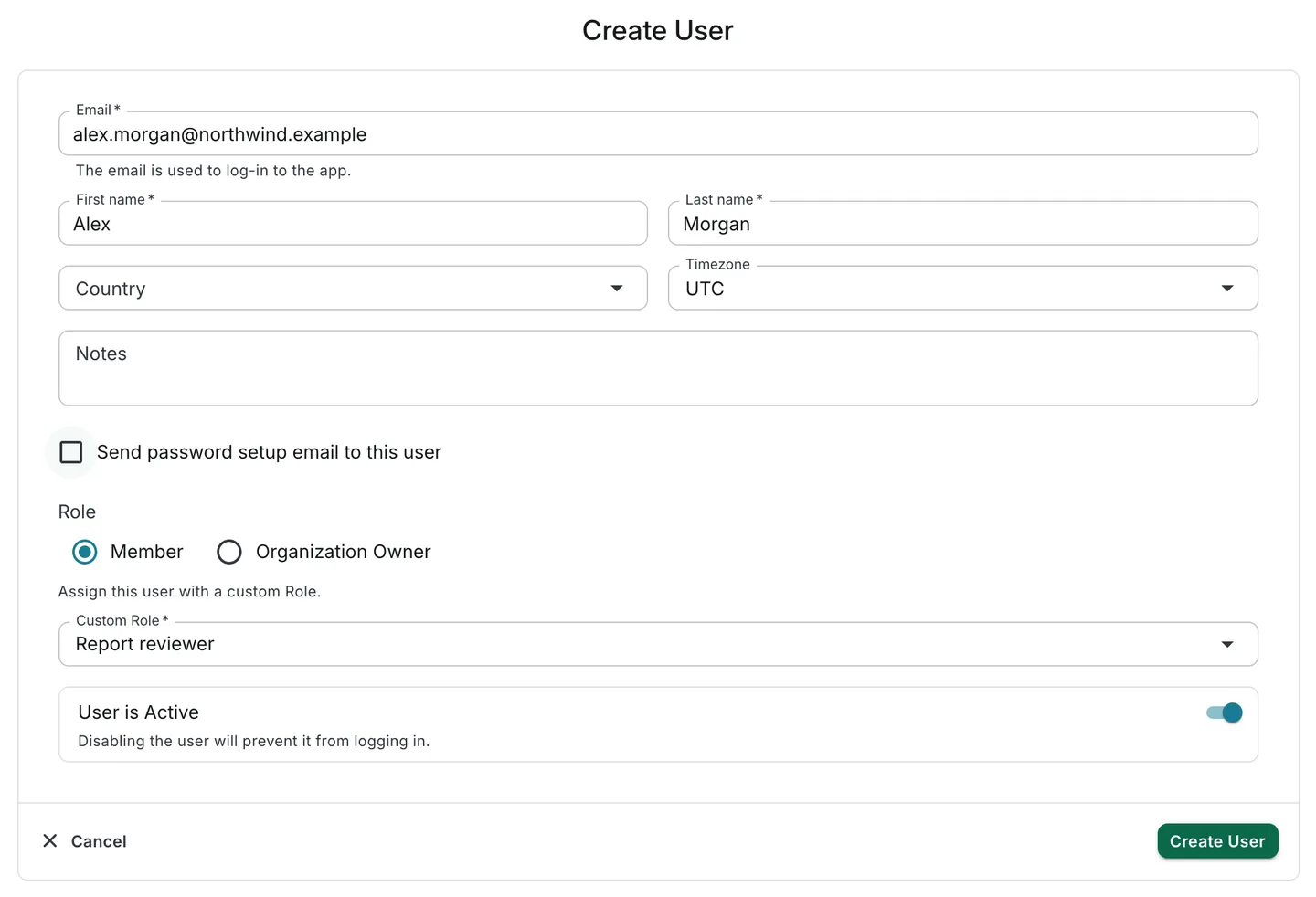
Illustrative member setup using fictional details. UTC is the timezone selected in this example, not a default.
The new member receives the selected role’s permissions. Return to account settings for invoicing and owner-only API-key setup.