
AppsFlyer
Easily integrate Appsflyer with 24metrics to enhance fraud detection capabilities. Start by creating a new integration in 24metrics and copying the Integration ID.
Configure the integration in Appsflyer by navigating to Integrated Partners, searching for 24Metrics, and pasting the Integration ID.
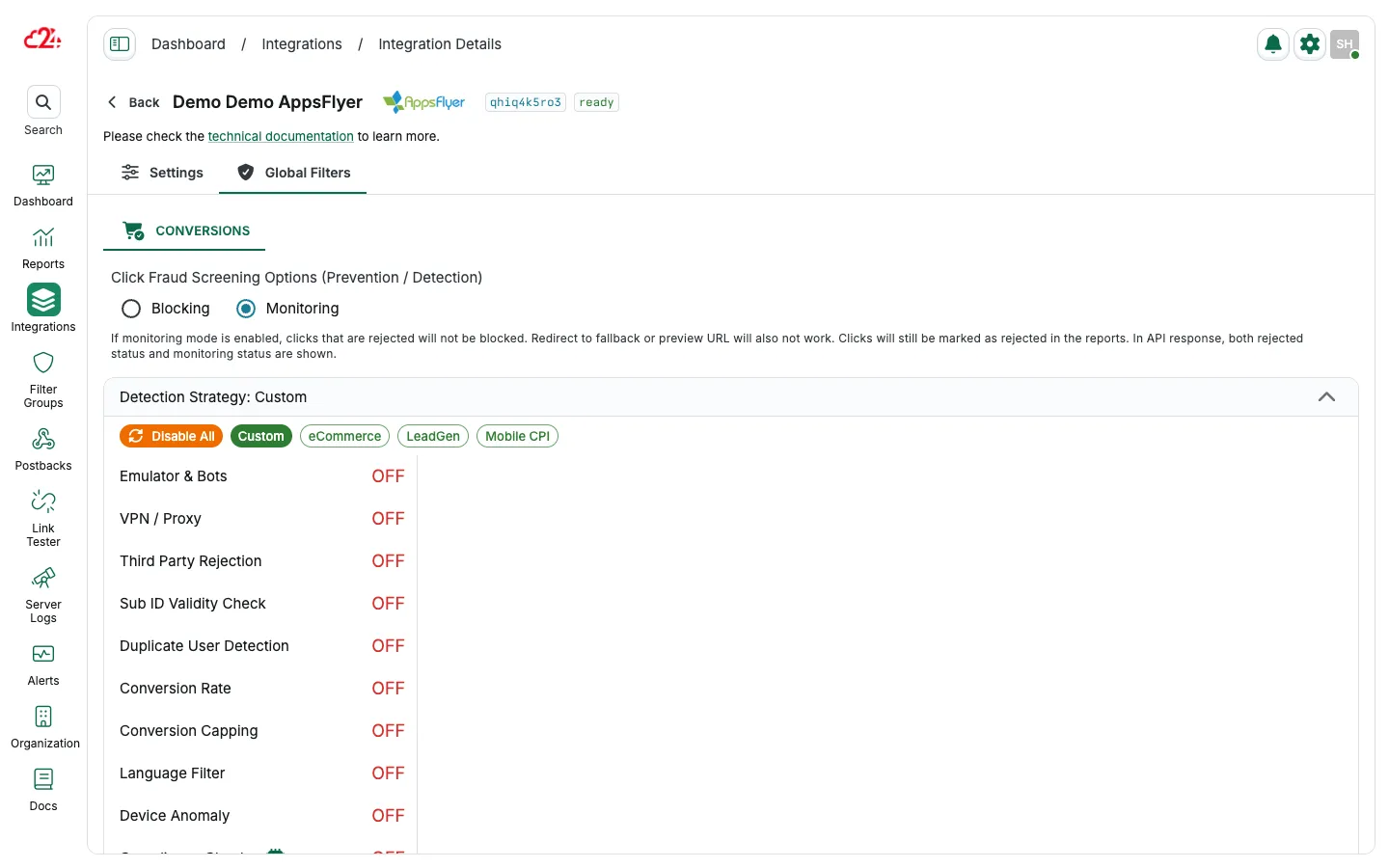
Next, map conversion parameters in 24metrics to align with the platform and define the fraud filters for the conversion screening.
For optimal results, when possible, implement the rejection endpoint provided in the Advanced Settings of 24metrics. This ensures synced rejection statuses between 24metrics and third party platforms.
AppsFlyer conversion integration
Section titled “AppsFlyer conversion integration”Integrating the conversions with 24metrics enhances your fraud detection capabilities.
For click screening instead, contact the 24metrics support team to have a custom click fraud screening set up for you.
Follow these steps to set up the integration for conversion screening:
-
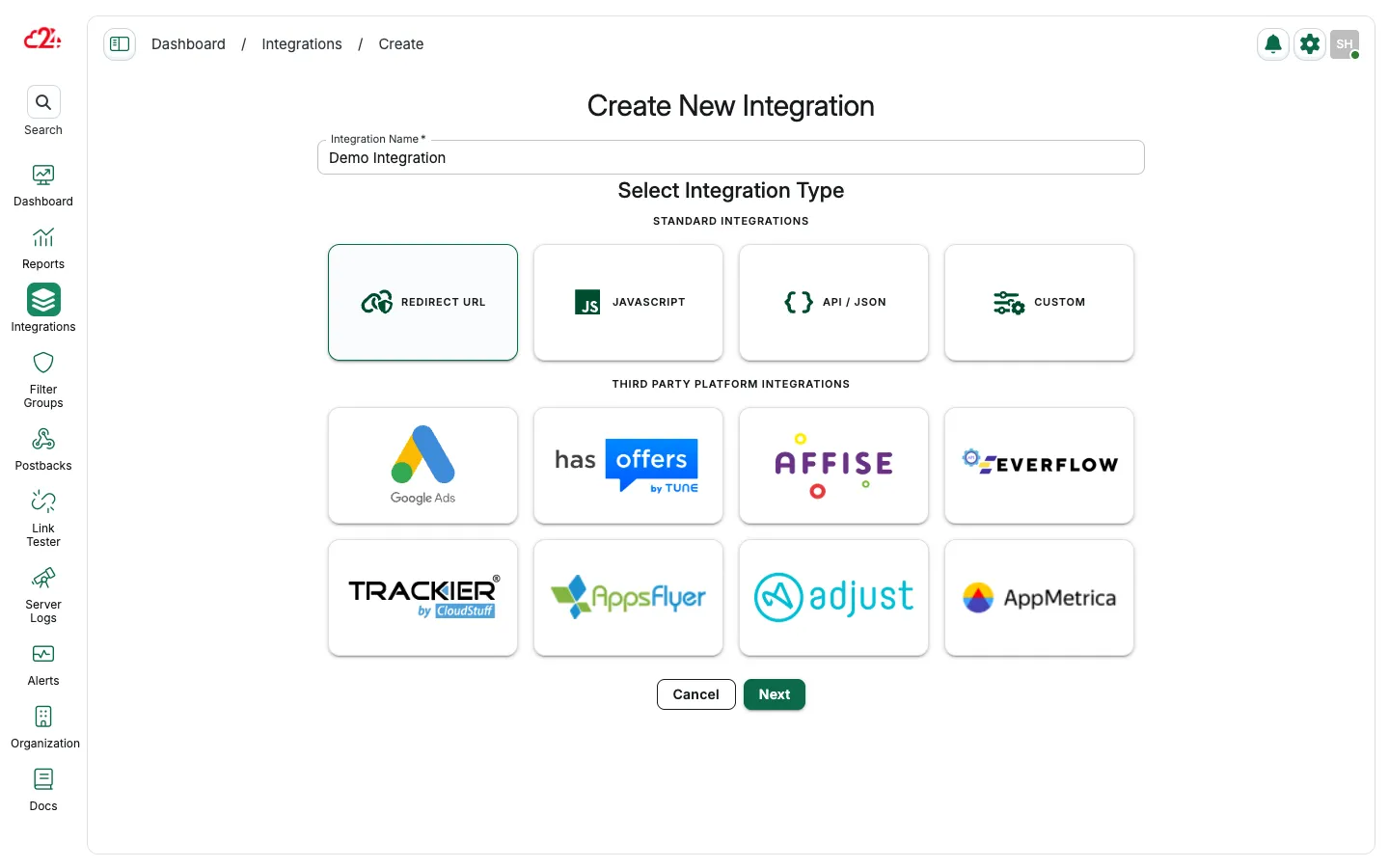
Create a new integration
Open Integrations and click Create. Enter a name, select AppsFlyer, then click Save & Proceed To Setup.
-
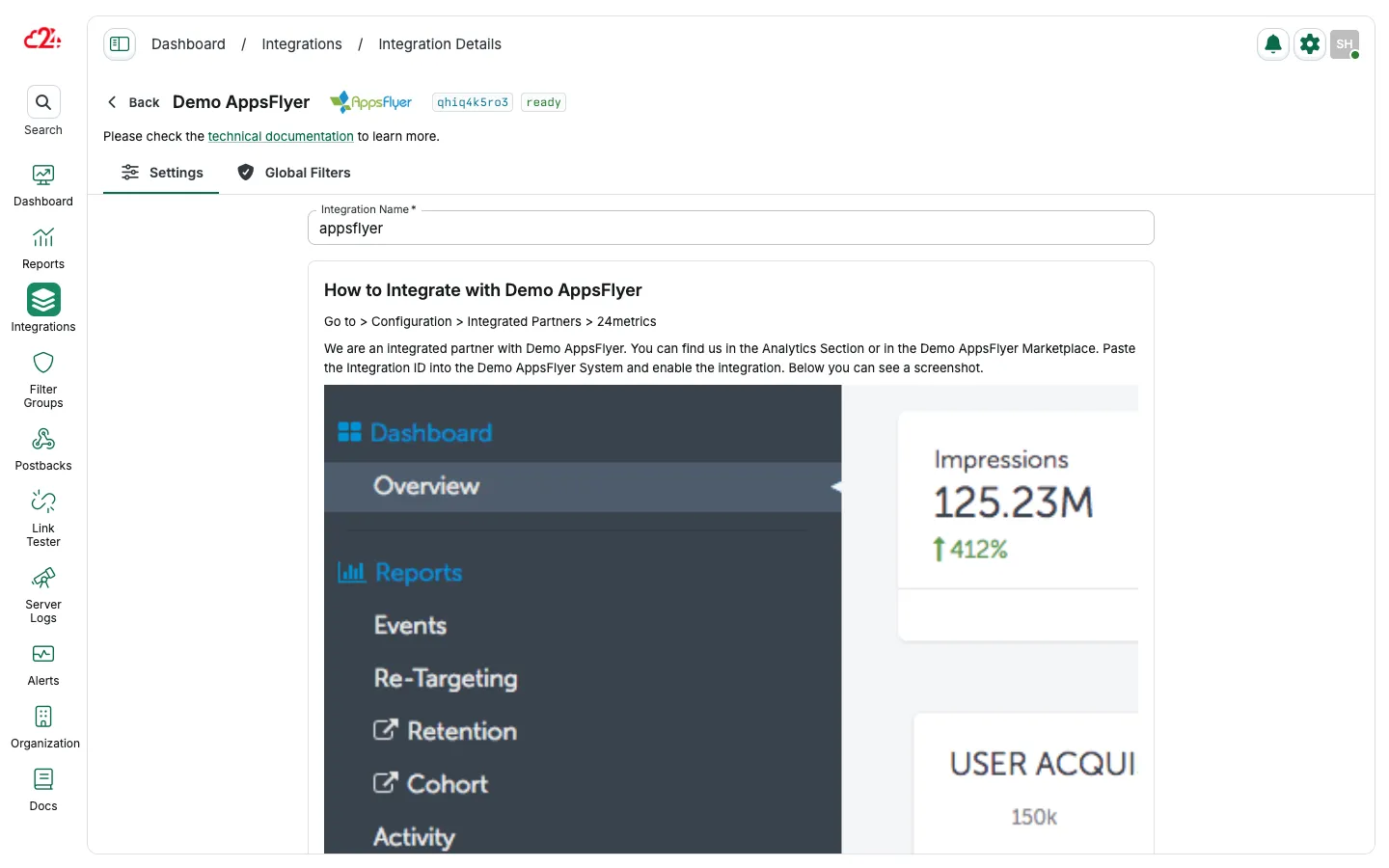
Configure integration
After creating the integration in 24metrics, copy the provided Integration ID. In your Appsflyer advertiser account, go to Configuration > Integrated Partners, and search for 24Metrics. Paste the Integration ID into Appsflyer and enable the integration.
-
Map conversion parameters and enable filters
Return to 24metrics and open Settings → Conversion Settings to map parameters. Enable conversion screening under Global Filters.