

Platform redirect URLs
This guide explains how to set up a Platform Redirect URL Integration inside the 24metrics AdSecurity antifraud platform. Using this integration, all offer clicks from your tracking platform will first pass through 24metrics for fraud screening before being redirected to the advertiser’s landing page.
Create the integration
Section titled “Create the integration”-
From the main menu, go to Integrations.
-
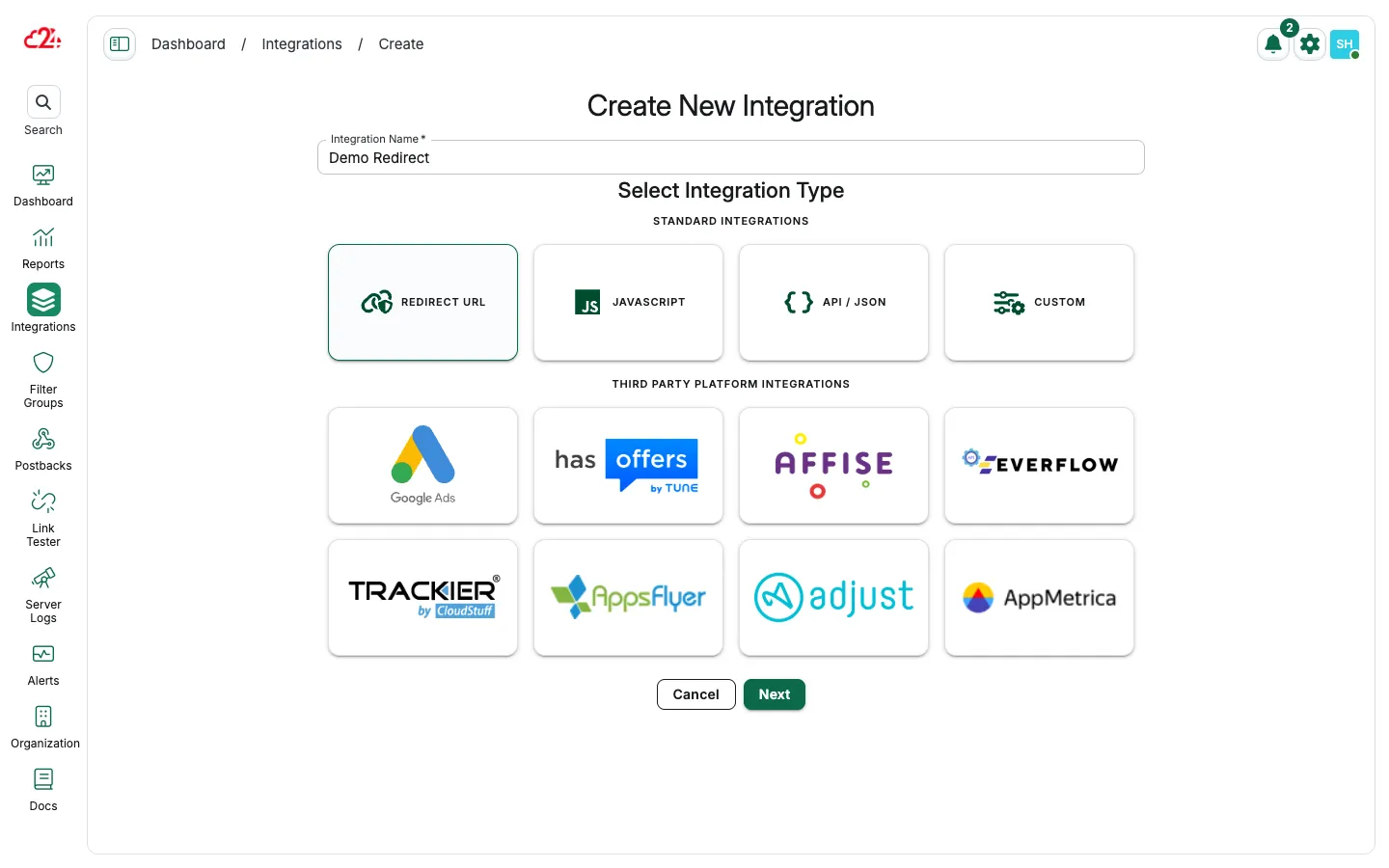
Click Create to start the setup wizard.
-
Assign a Name to your integration (you can edit this anytime).
-
From the integration type list, select Redirect URL Integration.
-
Click Save & Proceed to Setup.
-
In the next step, select your Tracking Platform from the drop-down menu. In this example, choose Tune HasOffers.
-
Click Save.
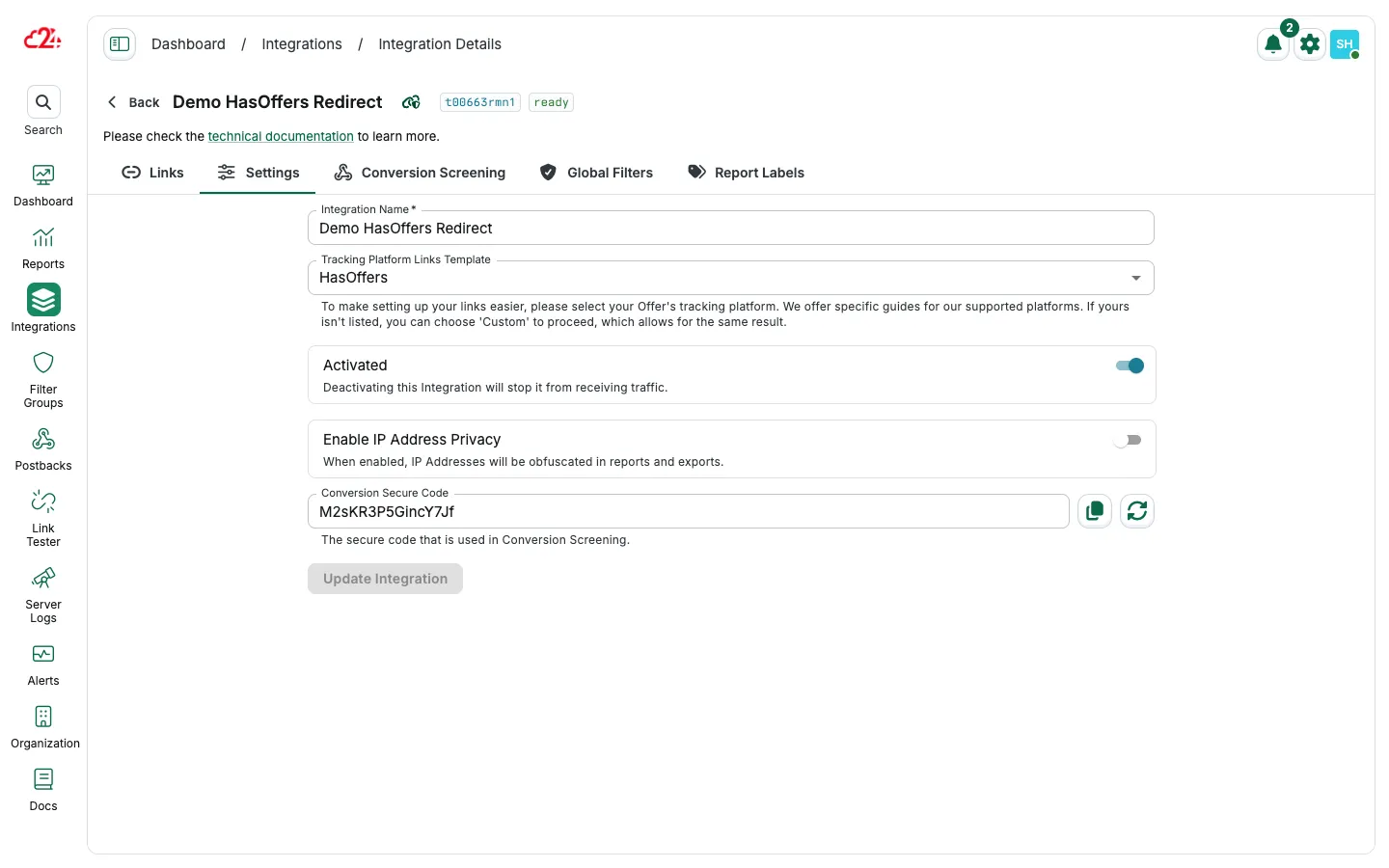
Your integration is now created.
Tracking links logic explained
Section titled “Tracking links logic explained”With this integration type, macro mapping is already preconfigured. There’s no need to manually map macros between 24metrics and Tune HasOffers (e.g., Offer ID, Affiliate ID, Transaction ID, etc.).
The flow works like this:
- You copy the Offer/Landing Page URL directly from Tune HasOffers (Advertiser URL, not the affiliate tracking link).
- You paste that URL inside the 24metrics integration when creating a new link.
- 24metrics generates a new Offer URL.
- You replace the original Offer URL in Tune with this newly generated 24metrics URL.
This way, affiliates still use Tune tracking links as usual, but clicks are screened by 24metrics before being redirected to the advertiser.
Add a new offer / link
Section titled “Add a new offer / link”-
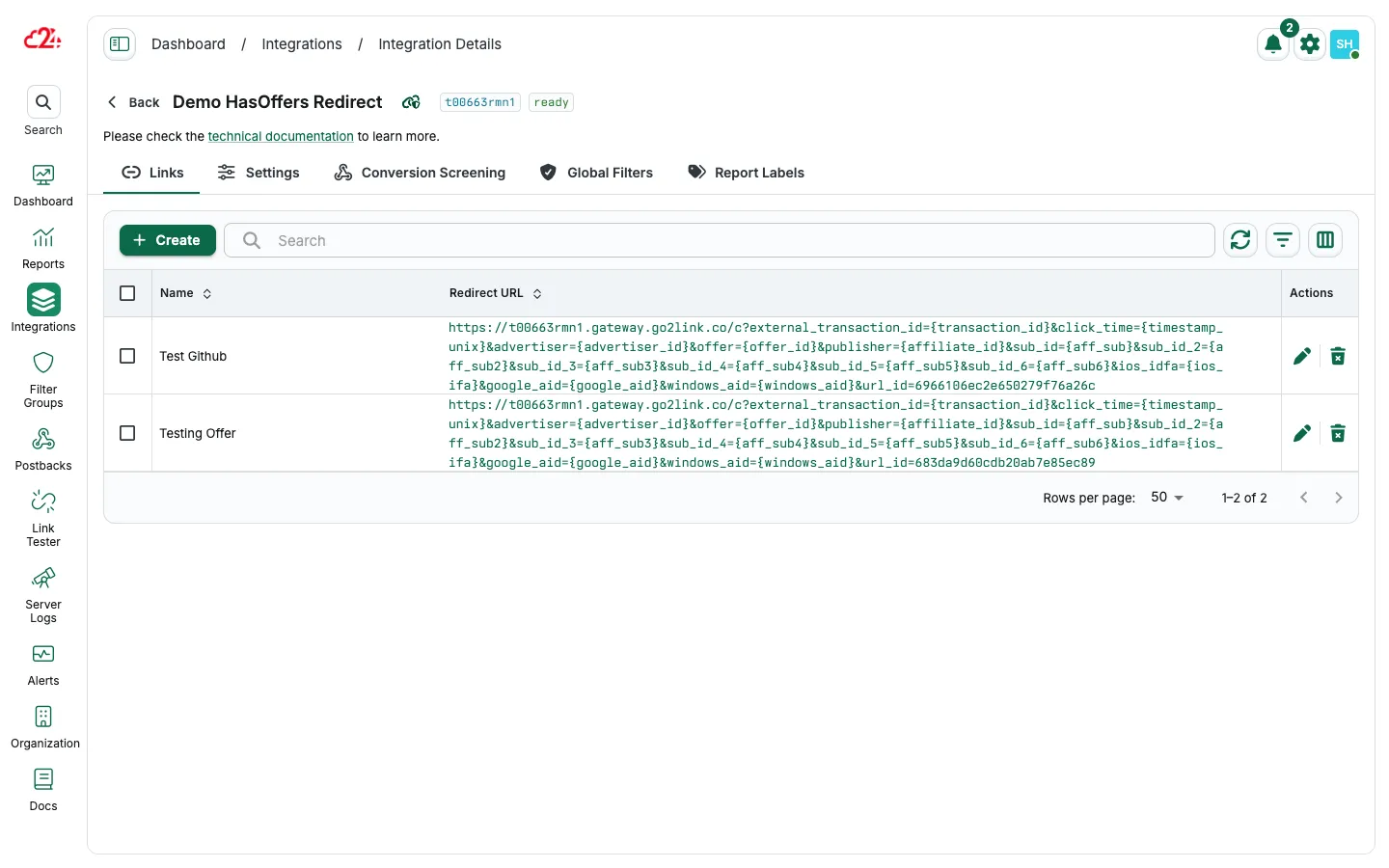
Go to the Redirect URL Integration you just created. By default, you’ll be on the Links tab.
-
Click Create.
-
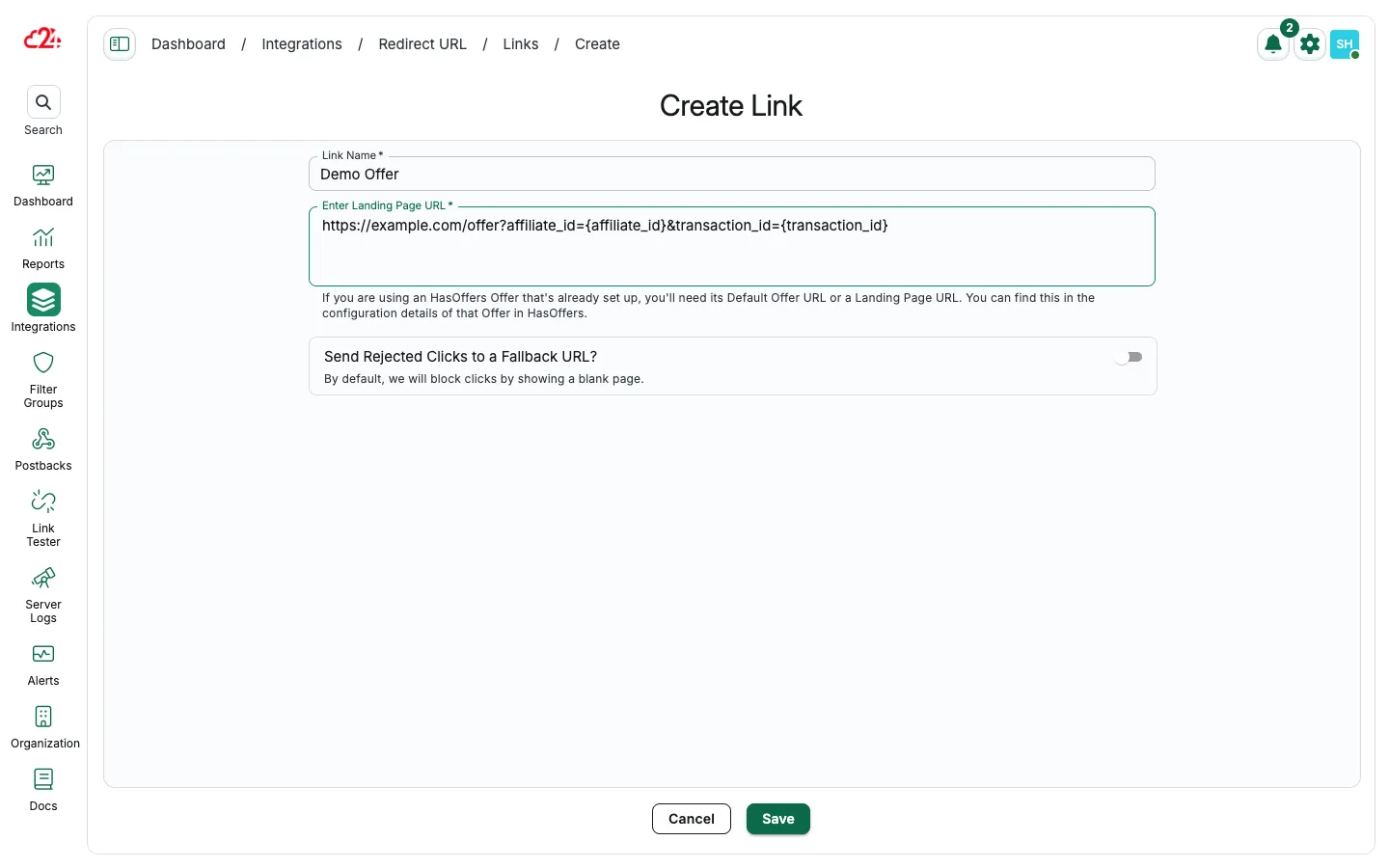
Assign a Name to the link.
-
In the field Enter Landing Page URL, paste the Offer/Landing Page URL with macros from Tune HasOffers exactly as it is.
-
Optionaly, add a Fallback URL (e.g., an offer preview link). This fallback will be used when a click is flagged as fraudulent and rejected.
-
Click Save.
Replace the URL in Tune HasOffers
Section titled “Replace the URL in Tune HasOffers”-
Copy the new offer url generated by 24metrics.
Example:
https://example.clicks.24metrics.com/jsp?external_transaction_id={transaction_id}&offer={offer_id}&publisher={affiliate_id}&url_id=example-link-id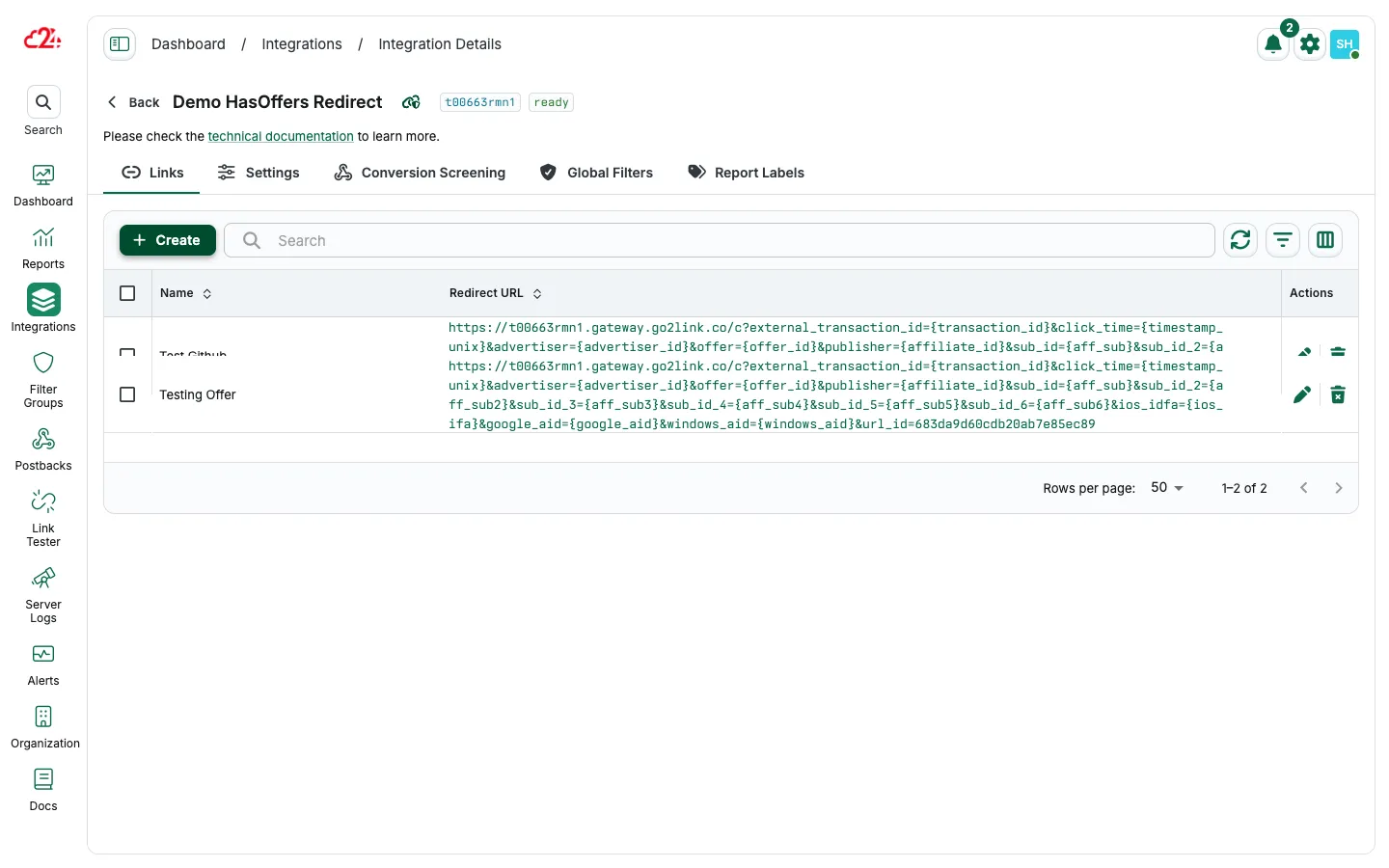
-
In Tune HasOffers, replace the original Offer/Landing Page URL with the new 24metrics URL.
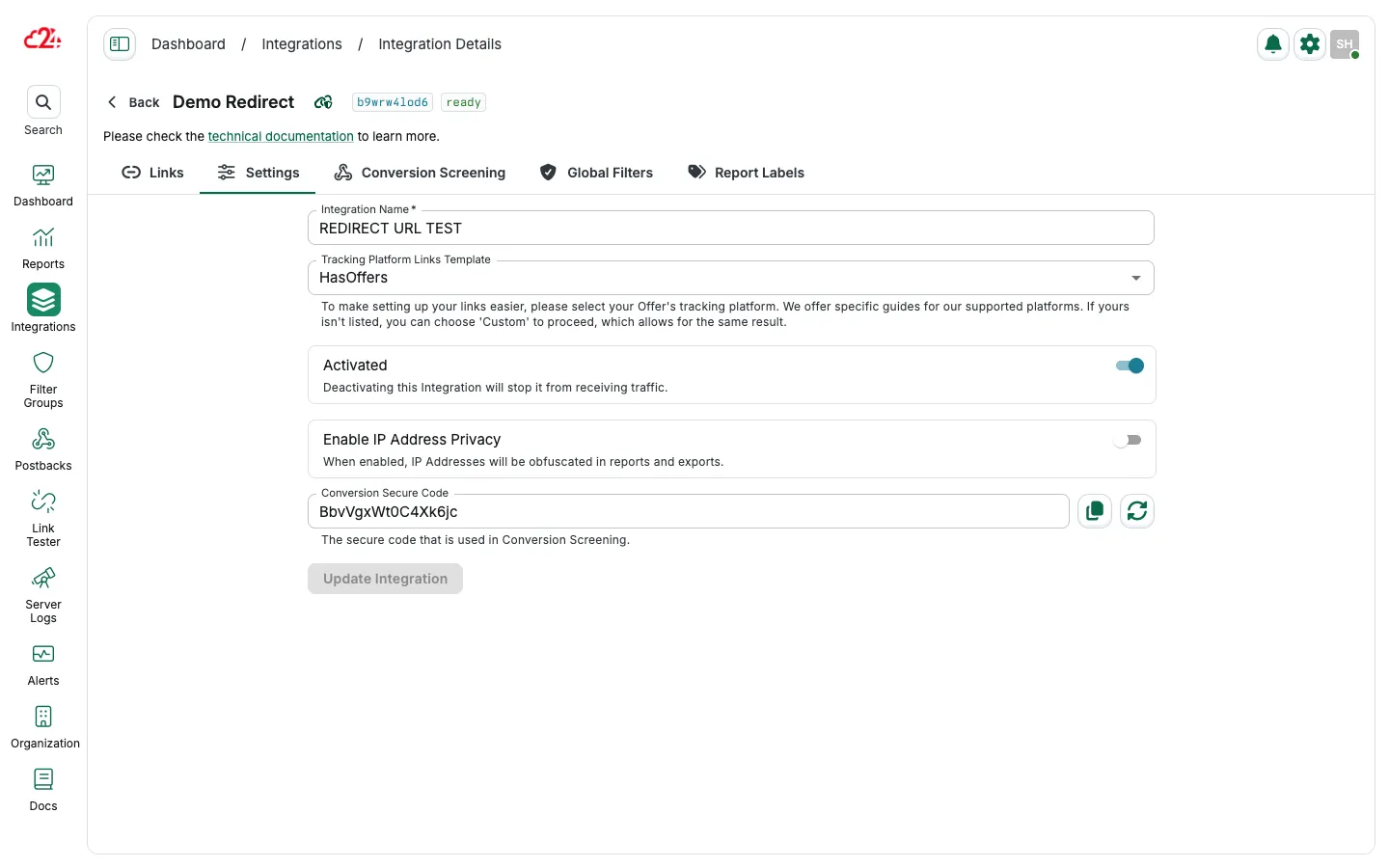
Now, all clicks will follow this flow:
Affiliate Link → Tune HasOffers → 24metrics AdSecurity (fraud screening) → Advertiser Landing Page
Benefits of this setup
Section titled “Benefits of this setup”- No manual macro mapping required (preconfigured).
- Fraudulent clicks are redirected to a fallback URL if set.
- Seamless workflow: affiliates keep using their Tune links without changes.
- Centralized click screening and reporting inside 24metrics.