

Export reports
Exports use the selected integration, dates, filters, and table fields. Aggregate reports and raw-log reports have different download workflows. You need access to the source integration.
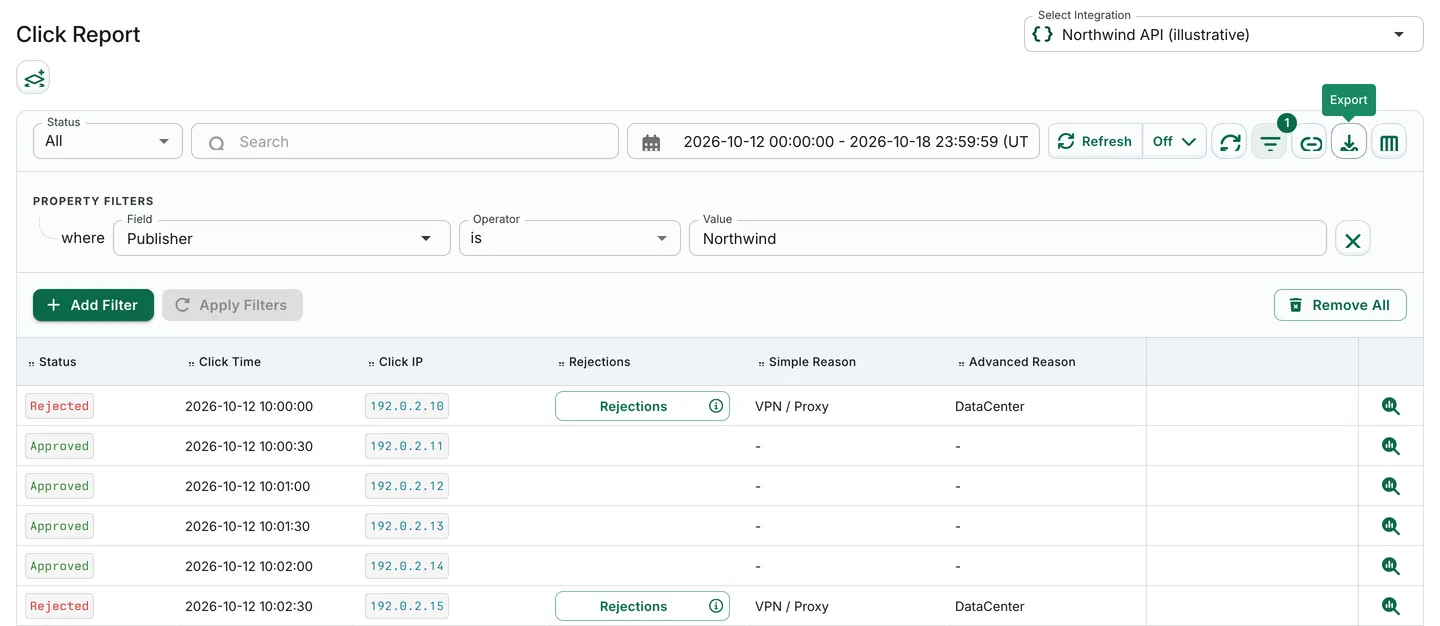
Illustrative synthetic Northwind rows and selected fields, with the Export tooltip shown.
Available reports for export
Section titled “Available reports for export”| Report | Export workflow |
|---|---|
| Overview and Daily | Generate and download CSV directly, not through Download Center |
| Click, Conversion, Postback, and Impression logs | Queue an export and retrieve the prepared file in Download Center |
Available reports depend on your integration and access. Event fields are part of the 24metrics Conversion Report, not a separate Events route.
How to export CSV reports
Section titled “How to export CSV reports”- Open the report and select the integration and date range. Check its displayed timezone.
- Use Edit Columns to choose the fields you need.
- Apply filters and review the resulting scope.
- Use the Export control in the report toolbar.
- For queued raw-log exports, open Reports → Download Center and wait for completed before downloading. Overview downloads directly.
Result and next steps
Section titled “Result and next steps”Queued jobs may be pending, in progress, completed, error, or cancelled. Processing is asynchronous, with no guaranteed completion time. Check the status before repeating a request; narrow the scope if you need to retry a failed export.
See Download center for prepared files. Do not assume unlimited rows or a universal daily quota. Review identifiers before sharing: hiding some columns does not irreversibly anonymize the remaining data.