

Overview reports
Use Overview Report to compare aggregate click, conversion, and event metrics across selected groups. You need access to the integration you want to review.
Accessing the report
Section titled “Accessing the report”- Open Reports → Overview Report.
- Select an integration and date range.
- Choose grouping fields, such as Publisher and Offer, and apply filters.
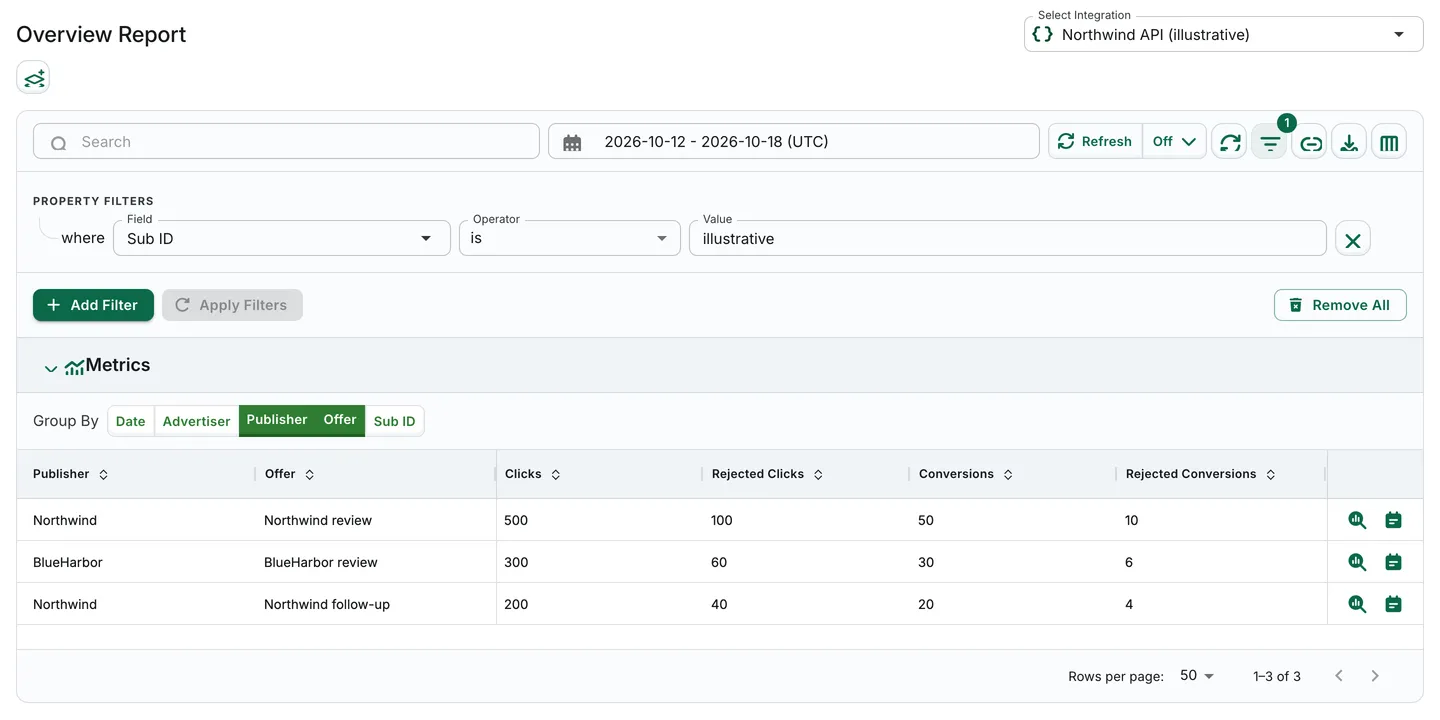
Illustrative synthetic data: invented totals and recorded rejections for fictional publishers, with a Sub ID filter. This is not a real incident.
Key features
Section titled “Key features”Data integration and time period selection
Section titled “Data integration and time period selection”Check the displayed timezone when choosing dates. The report uses your profile timezone, with a local timezone fallback; it is not universally UTC. The screenshots in these guides use UTC.
Filtering and grouping
Section titled “Filtering and grouping”Group by available dimensions such as Advertiser, Publisher, Offer, and Sub ID. Filtering narrows the records included in those groups.
Compare totals and rejected totals within the same scope. Rejection percentages describe recorded decisions, not a measured fraud rate. Reason occurrences can overlap: do not add them to infer unique rejected rows.
Column customization
Section titled “Column customization”Use Edit Columns to open Customize Columns, then select the metrics you need.
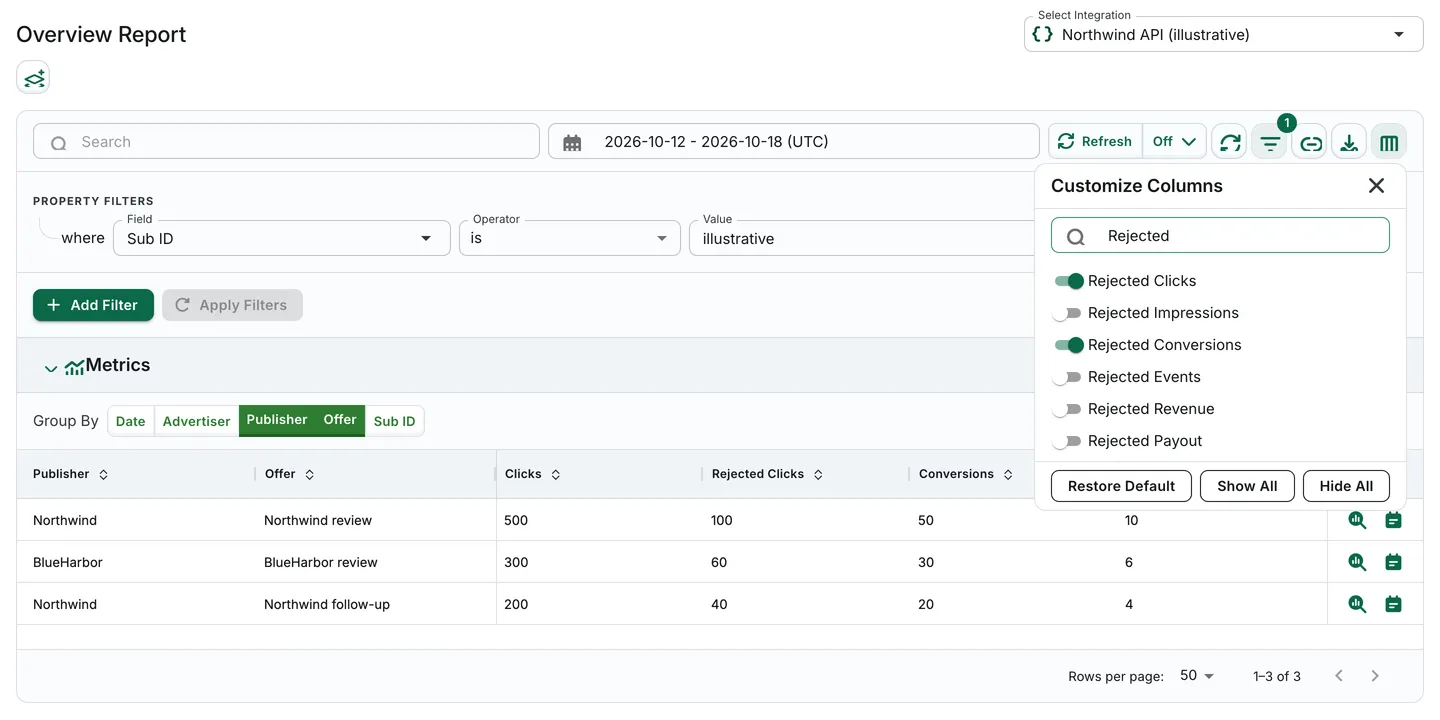
Illustrative synthetic report with the column selector. Traffic Insights is a separate row action, not a column toggle.
Investigate a row
Section titled “Investigate a row”Use View Traffic Insights on the relevant row to compare recorded reasons, sources, audiences, and devices. See Traffic insights for a synthetic investigation example and interpretation cautions.
Exporting data
Section titled “Exporting data”Overview generates a CSV download directly; it does not create a Download Center job. Narrow the date range and filters to the subset you need rather than assuming an unlimited export. See Export reports for the distinction from raw-log exports.
Shareable reports
Section titled “Shareable reports”Use the report’s share-link action to name a report based on selected settings. Recipients may need email activation; this is not a promise of unrestricted anonymous access or an immutable CSV snapshot. See Shared reports.