

Traffic insights
Traffic Insights breaks down the selected Overview row and date range. You need integration access and an eligible plan; unavailable access may show an upgrade prompt. Its chart labels describe screening data, not independent proof of fraud.
Open traffic insights
Section titled “Open traffic insights”- Open Reports → Overview Report and select an integration and dates.
- Find the publisher, offer, or other grouped row to investigate.
- Use that row’s View Traffic Insights action. You do not enable an Insights column through Edit Columns.
- Choose a dimension and analysis category in the drawer.
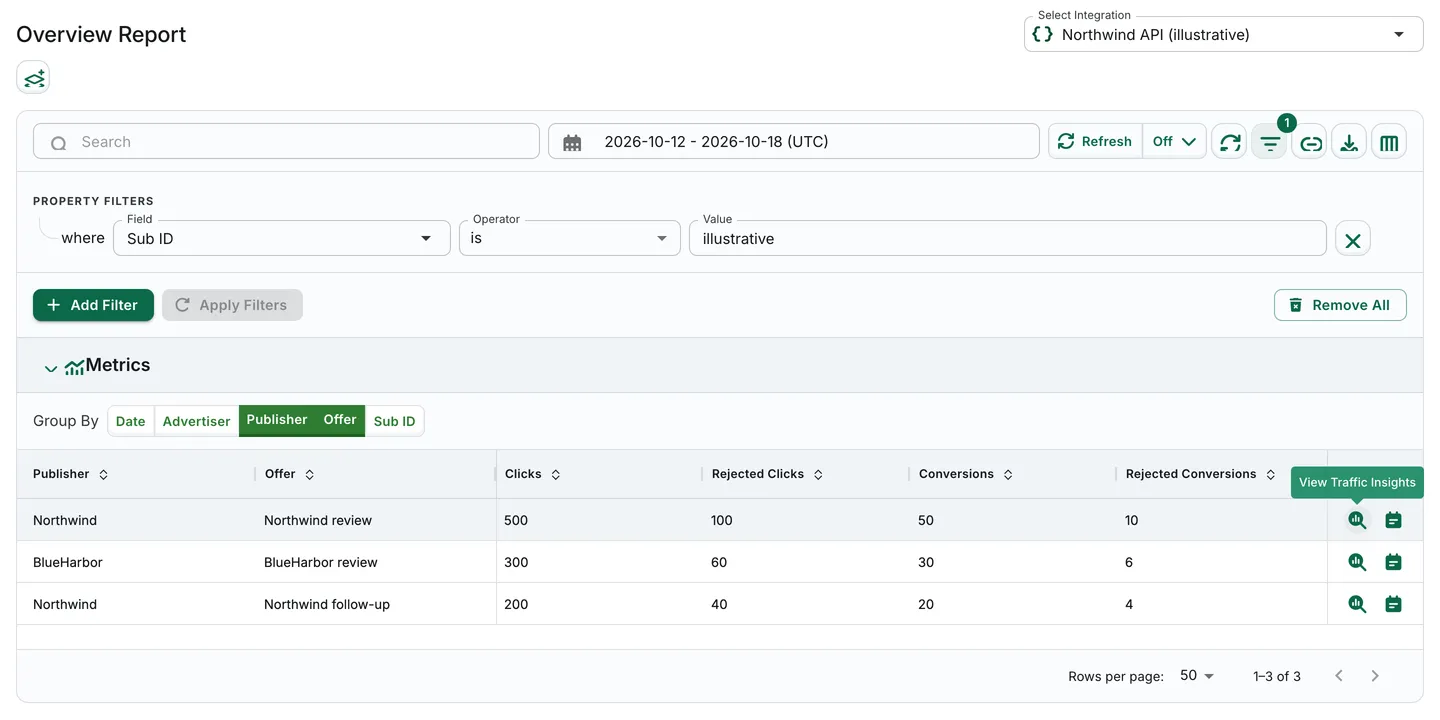
Illustrative synthetic Overview row; View Traffic Insights opens analysis scoped to that row and date range.
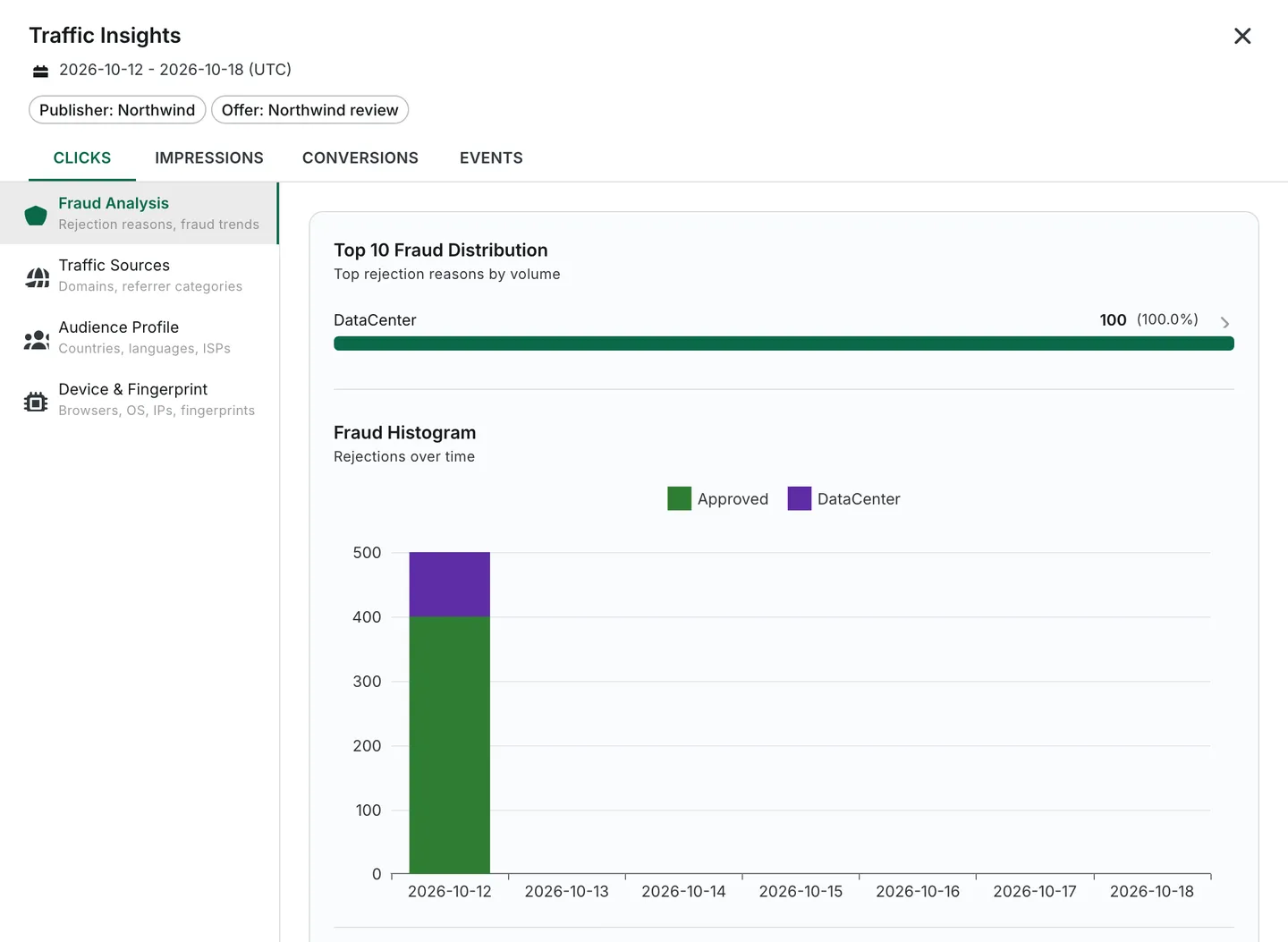
Illustrative synthetic Northwind analysis, not a real incident. This image shows the reason distribution and Fraud Histogram; the separate image below shows Filter Group Histogram.
Core features of traffic insights
Section titled “Core features of traffic insights”Choose among Click, Impression, Conversion, and Event dimensions. Available categories depend on the dimension:
| Category | What to inspect |
|---|---|
| Fraud Analysis | Top 10 Fraud Distribution, Fraud Histogram, and Filter Group Histogram |
| Traffic Sources | Top 10 Domains and Top 10 Domain Categories |
| Audience Profile | Countries, languages, and ISPs |
| Device & Fingerprint | Browsers, operating systems, and Top 10 IPs; fingerprints are available for Click and Impression only |
| Conversion Timing | Session Time Graph for Conversion and Event only |
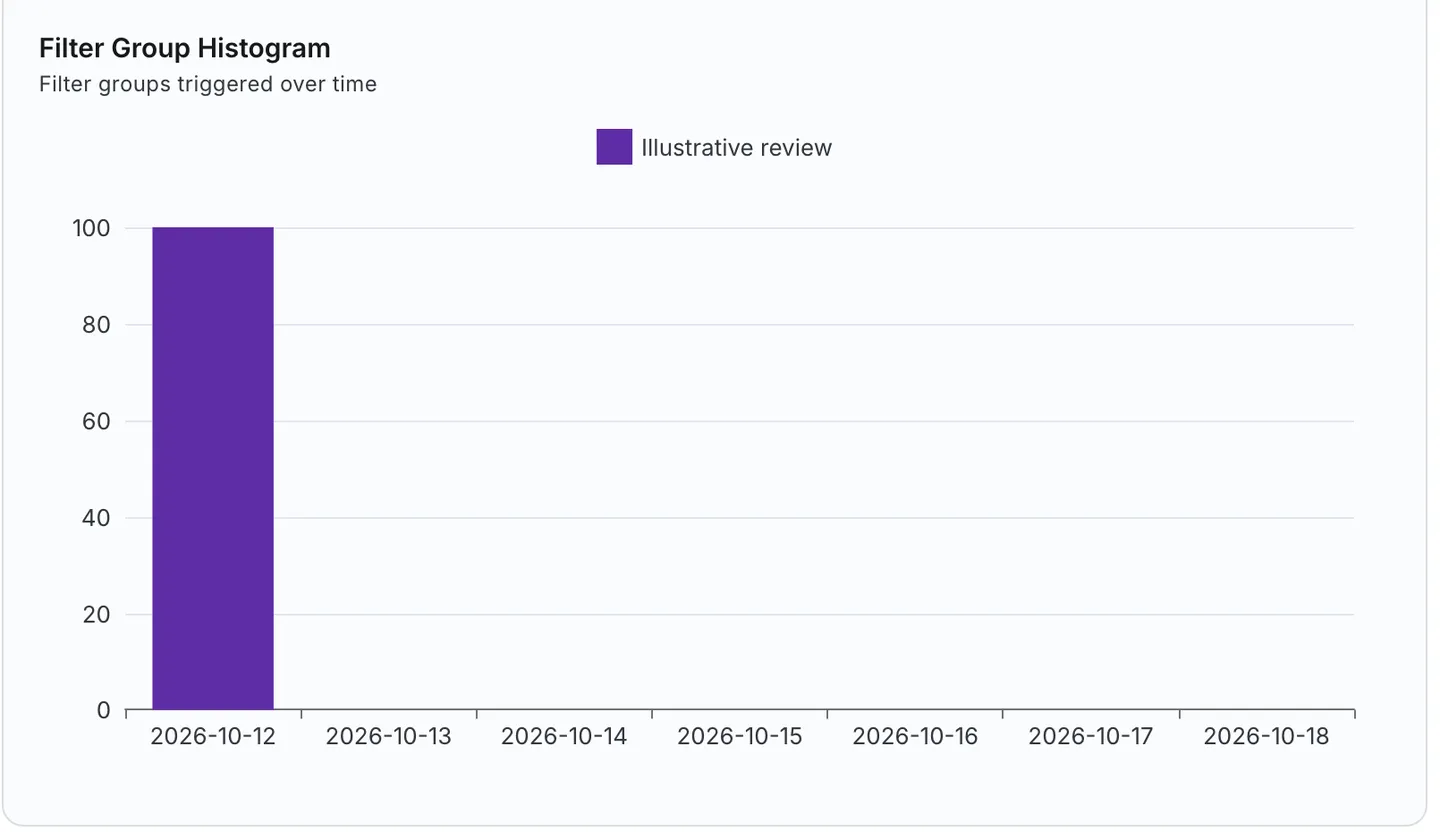
Illustrative synthetic data from further down the same analysis.
The parent report follows its displayed timezone, not universal UTC. Top 10 IPs explicitly uses UTC. Fingerprints are browser identifiers, not proof of a distinct person or source. These views do not establish an ingestion-freshness guarantee.
Investigation example
Section titled “Investigation example”- In the fictional Northwind review, compare recorded rejection reasons across the selected Click scope. Reasons may overlap; their sum is not a count of unique rejected clicks.
- Compare source domains, countries, ISPs, and device concentration in the same scope. Concentration or IP classification alone does not prove an attack or common cohort.
- Follow supported chart entries or Top 10 IPs to the corresponding click or conversion rows, retaining the relevant filters and dates.
- Compare selected simple/advanced reasons with the full Rejections list and the filter group configuration. Review bot checks or duplicate-user checks only where relevant to the recorded evidence.
For a manual external lookup, use the IP reputation checker. No IP is automatically sent by this guide. Present-day reputation does not prove a historical record was fraudulent, and absence of rejection does not establish approval or payment eligibility.