

Affiliate postback setup
The affiliate postback setup is critical for syncing conversion data with your affiliate partners or external platforms. This guide walks you through how to configure postbacks in 24metrics, covering URL setup, firing rules, and advanced options like delay and rejection filters, so you can ensure accurate and timely conversion reporting.
Setup steps
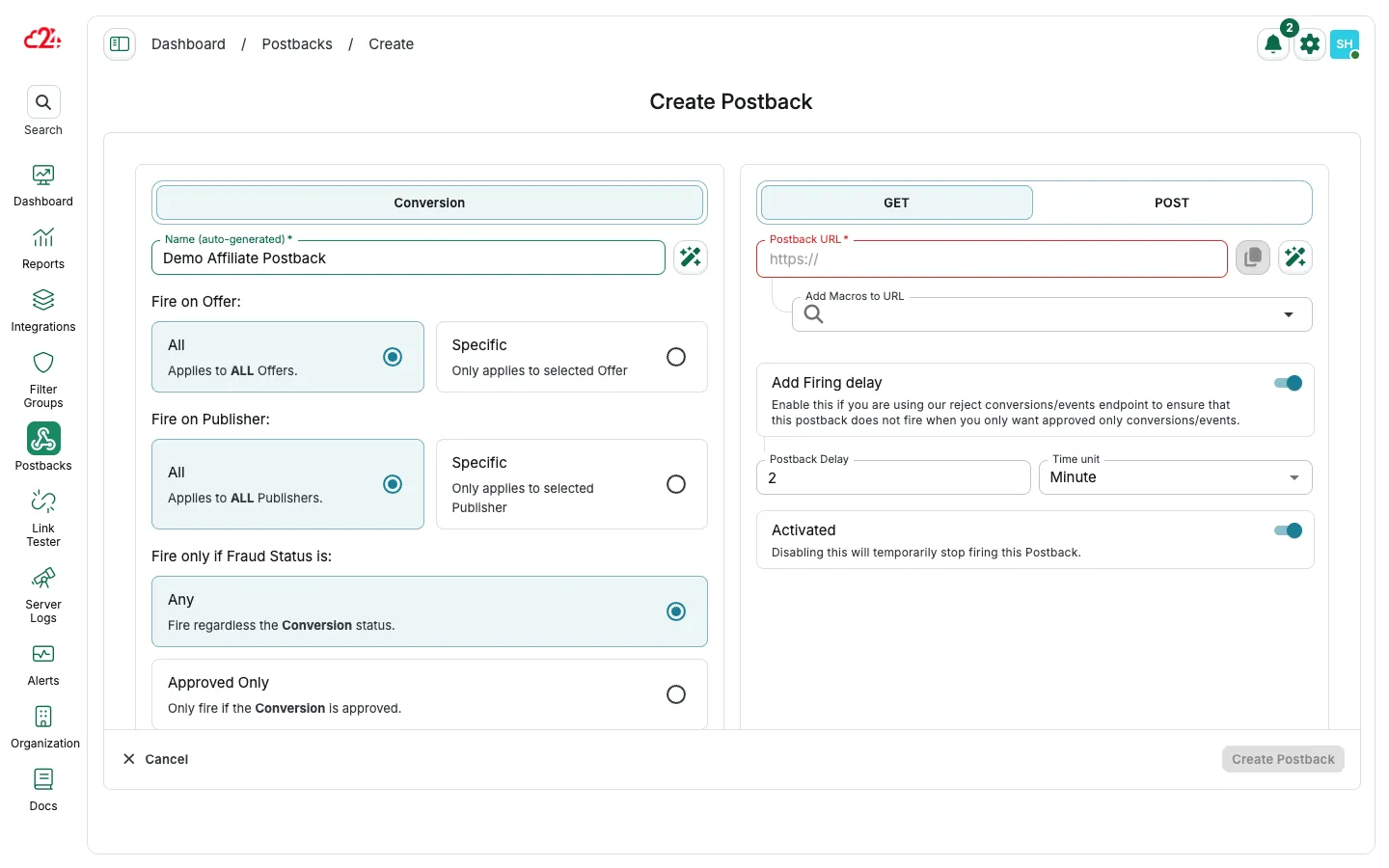
Section titled “Setup steps”- Open Postbacks from the main menu.
- Click Create (the Conversion type is selected by default).
- Enter a name (or keep the auto-generated name).
- Choose whether the postback applies to All or Specific offers and publishers.
- Enter the target Postback URL and map parameters with Add Macros to URL.
URL mapping
Section titled “URL mapping”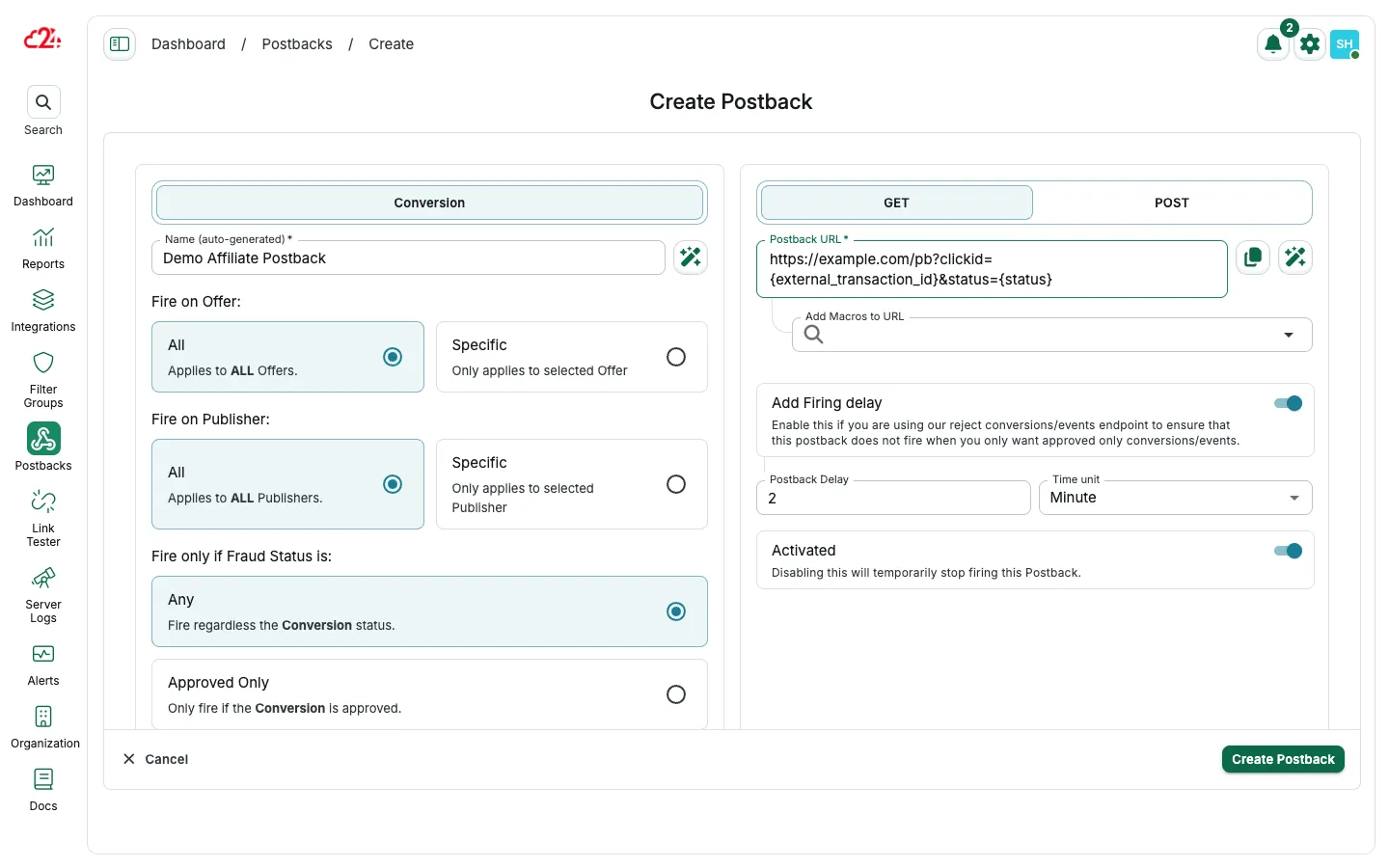
24metrics postbacks can target conversion, paid click, impression, or event traffic (see Postback types). Each type can be mapped with macros such as {status}, {rejection_reason}, and {external_transaction_id}. These macros insert values when the postback fires.
Essential fields:
clickid(or its alias)- Optional macros like
{status},{rejection_reason},{external_transaction_id}
Example format:
Affiliate Postback Setup Example:https://example.com/?clickid={external_transaction_id}You can append more parameters (e.g., payout, status, or rejection reason) using the Add MACROS to URL field in the postback setup. Always double-check with your affiliate what macro format they expect.
Firing conditions
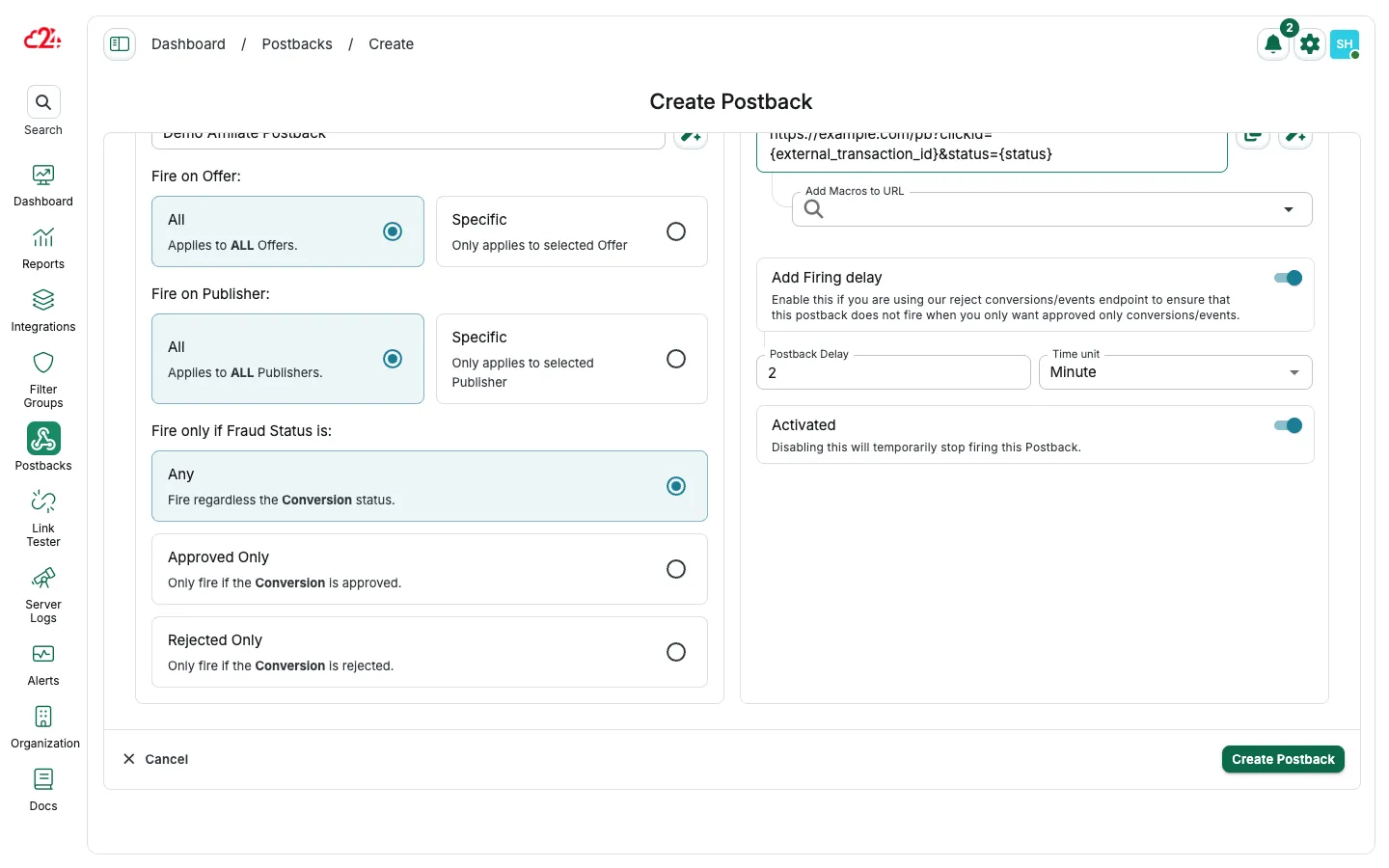
Section titled “Firing conditions”Under Fire only if Fraud Status is, choose when the postback fires:
- Any — approved and rejected conversions
- Approved Only — recommended for most affiliate payouts
- Rejected Only — rejected conversions only
Fire by rejection reason
Section titled “Fire by rejection reason”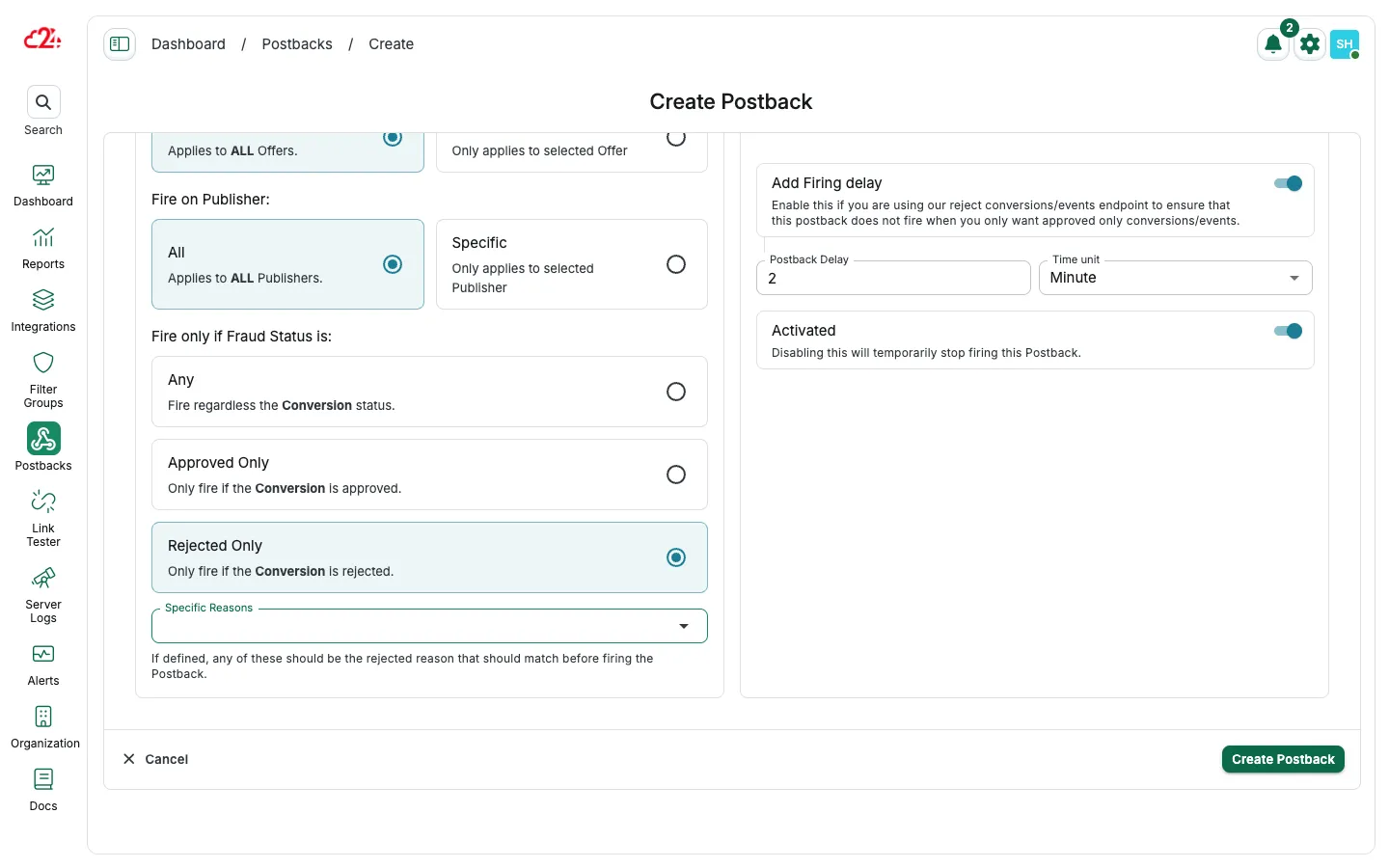
When Rejected Only is selected, use Specific Reasons to limit firing to matching rejection reasons.
Delay options
Section titled “Delay options”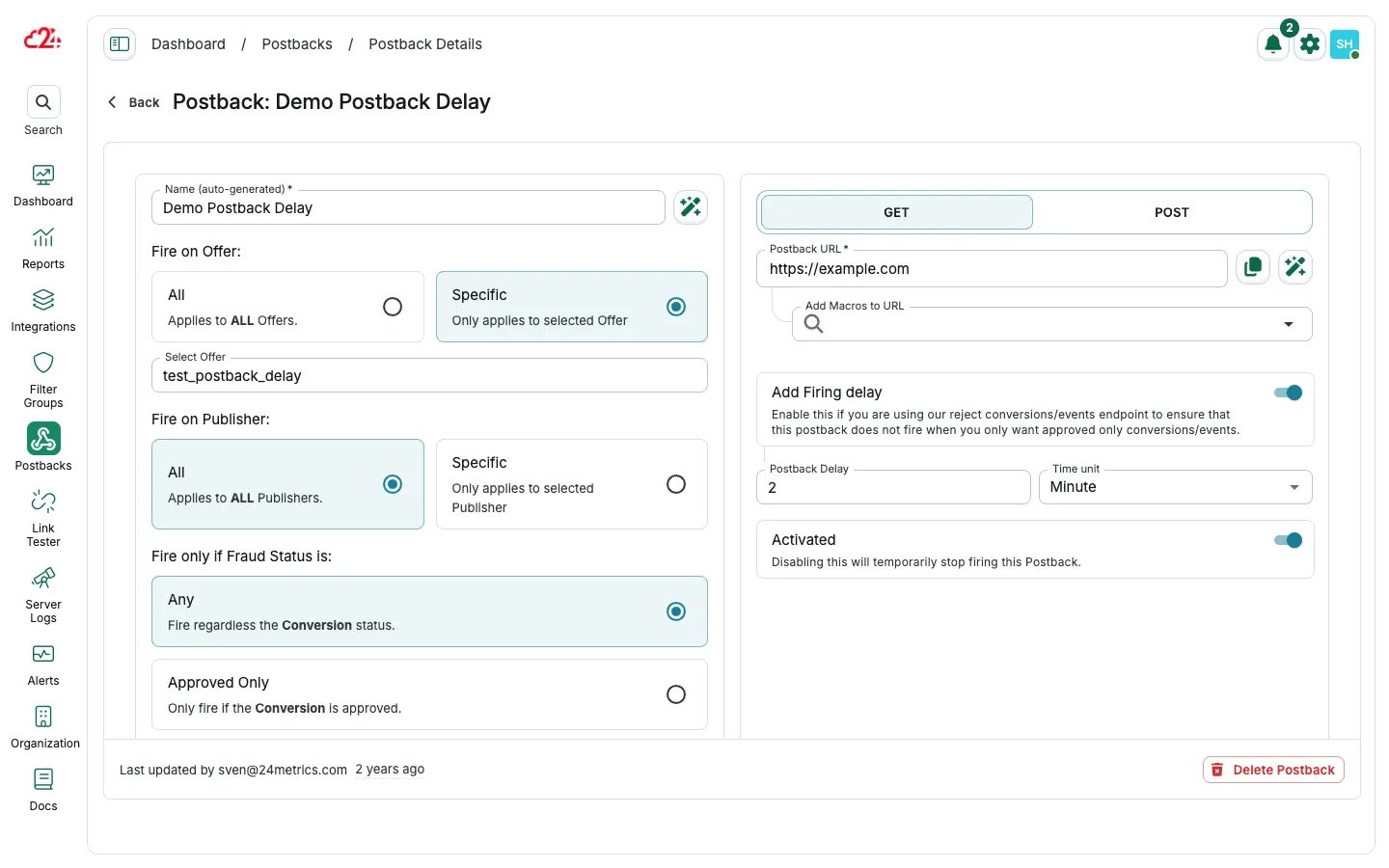
Enable Add Firing delay when you need to wait for external fraud checks (for example AppsFlyer or a reject-conversions endpoint). Set the delay value and time unit. The default delay is 2 minutes.