

Affise
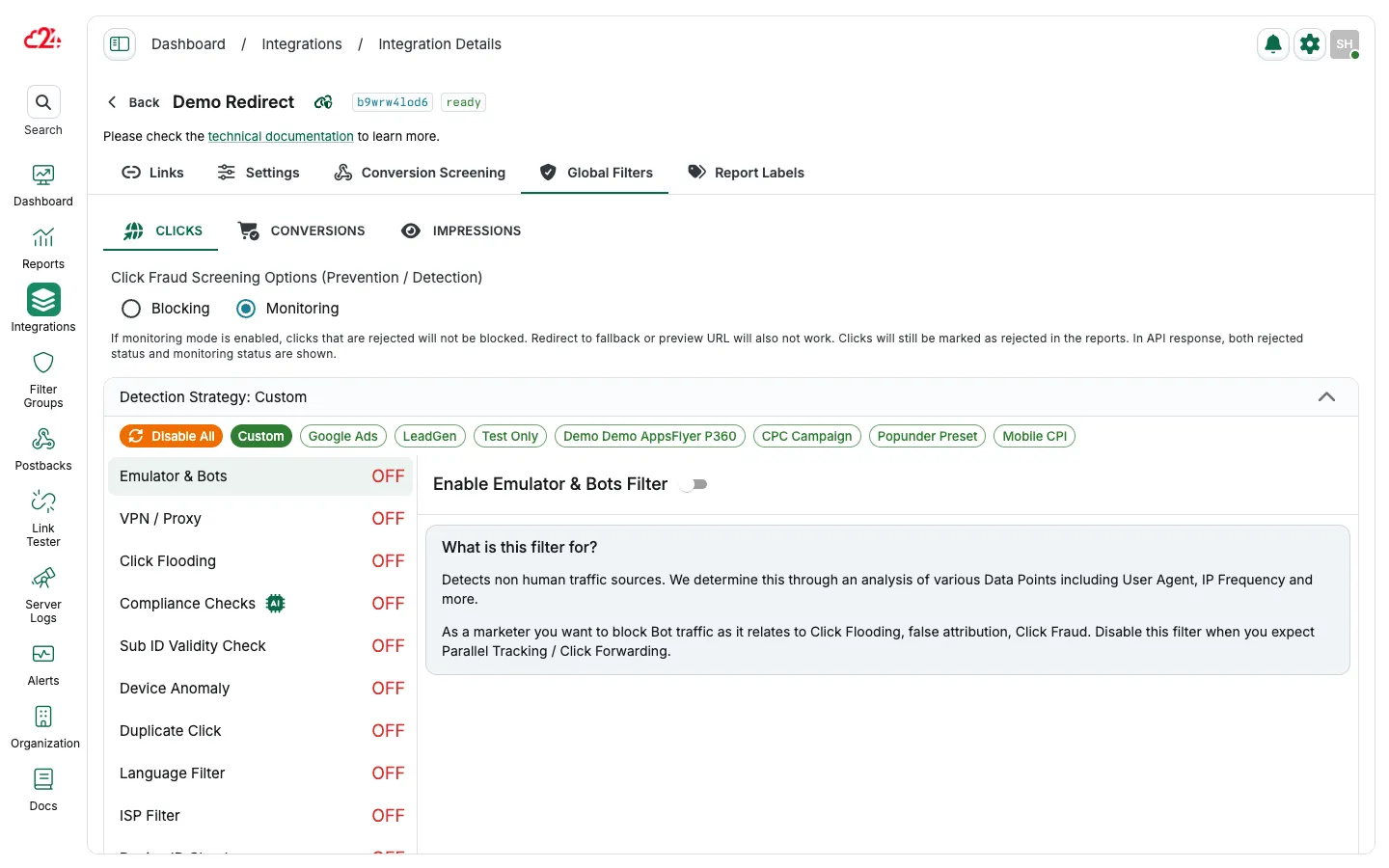
Integrating 24metrics platform with Affise enhances your affiliate marketing by providing real-time fraud detection and prevention. This integration allows for the screening of clicks and conversions, effectively blocking fraudulent activities such as bots, VPNs, and click farms.
Create a new integration
Section titled “Create a new integration”-
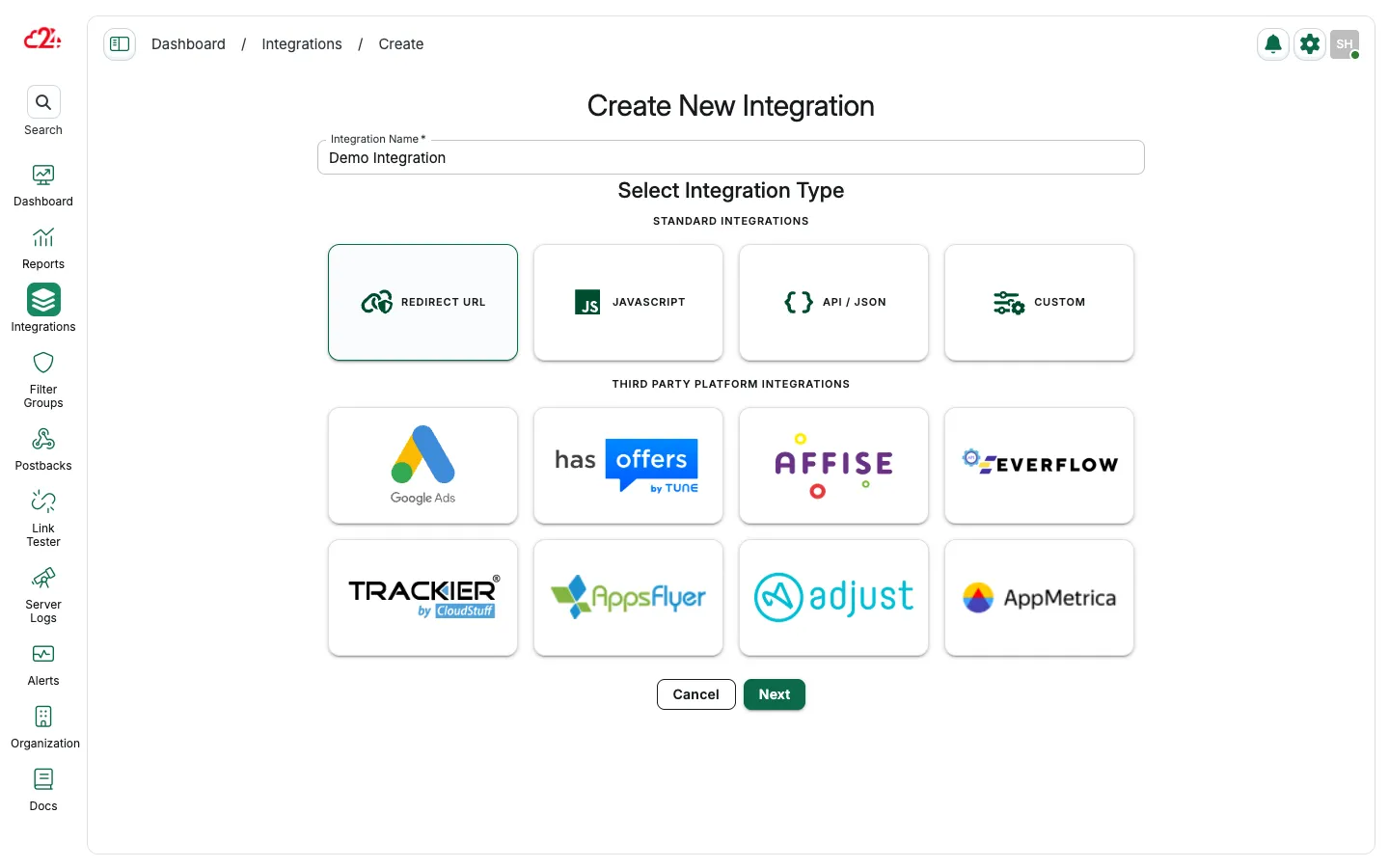
Open Integrations and click Create.
-
Enter a name, select the Affise type, then click Save & Proceed To Setup.
Configure API settings
Section titled “Configure API settings”-
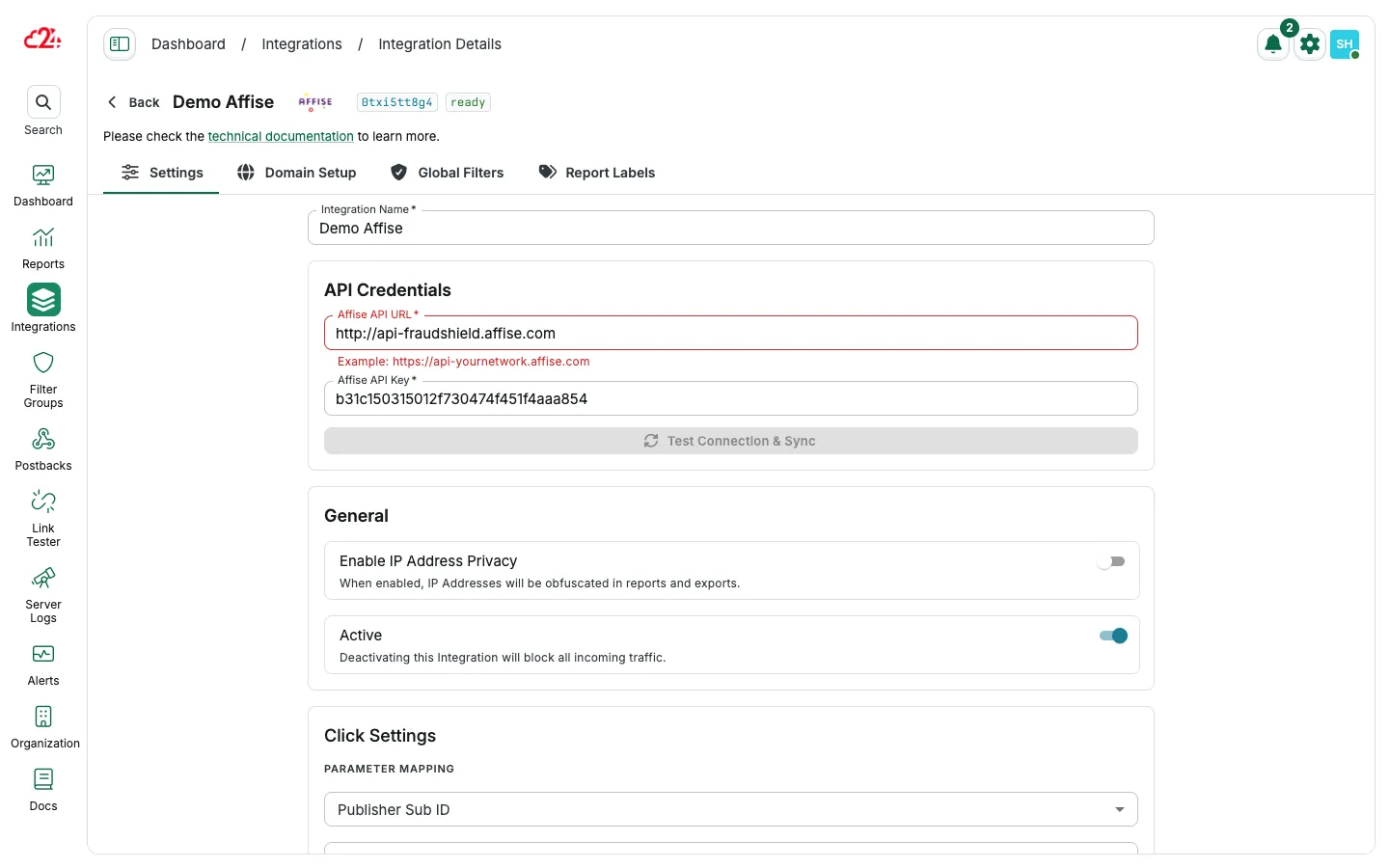
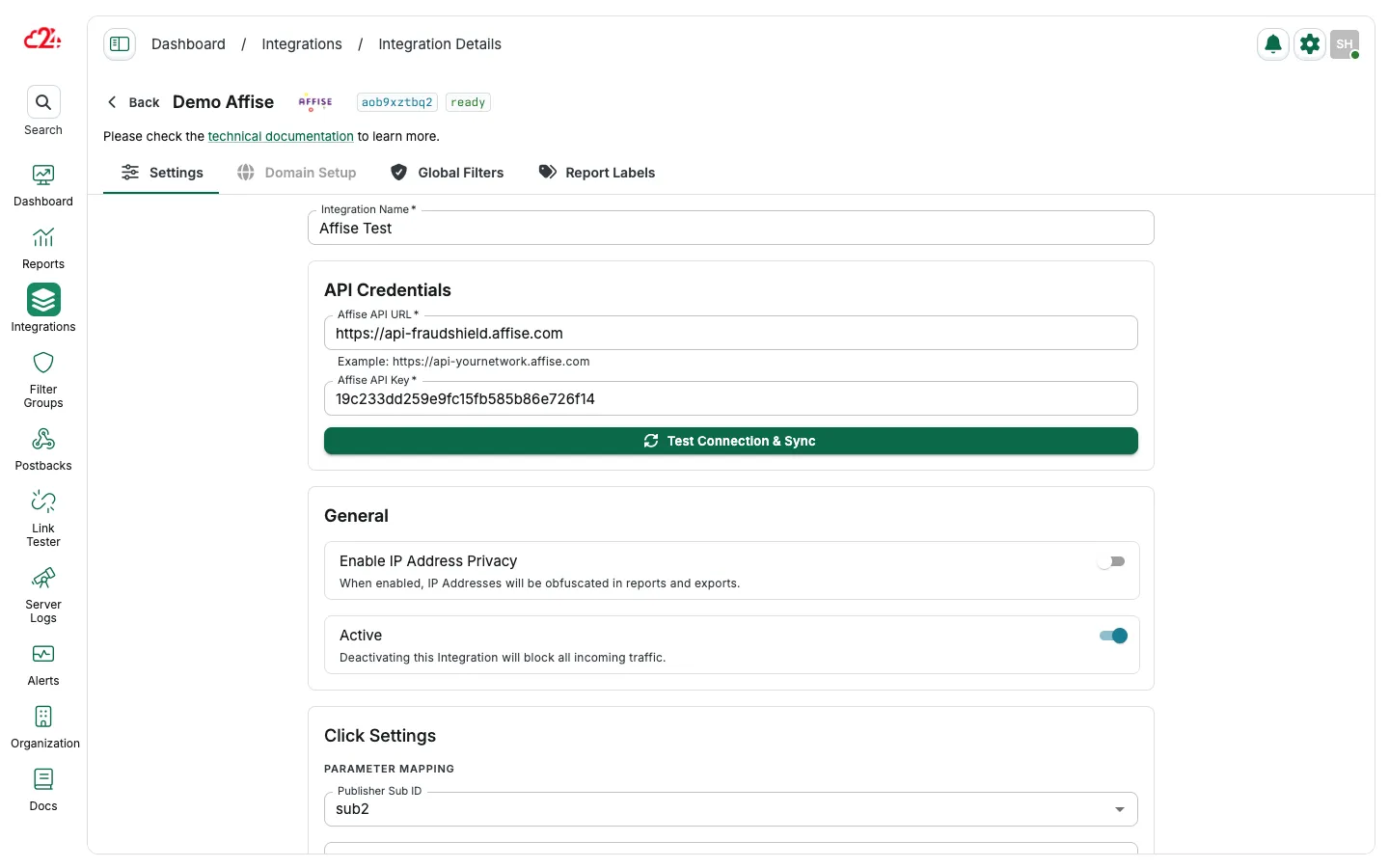
Enter your Affise API URL and API Key (request to Affise).
-
Click Synchronize to validate the connection. Note: In some rare cases, the first sync may not work. Click again to see the successful confirmation.
Click screening configuration
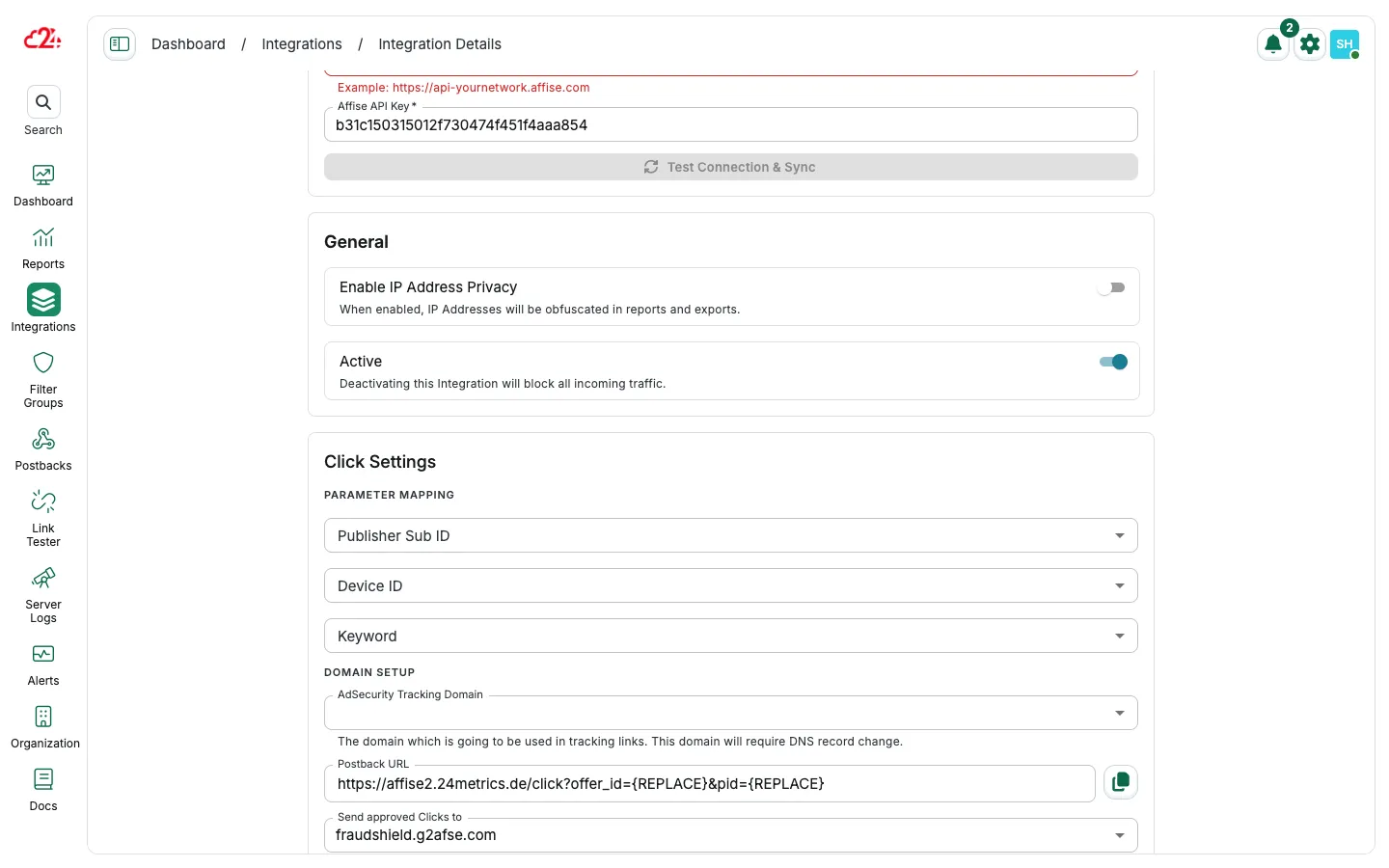
Section titled “Click screening configuration”- Open Settings → Click Settings.
- Select your AdSecurity tracking domain and map Sub ID, Device ID, and Keyword parameters.
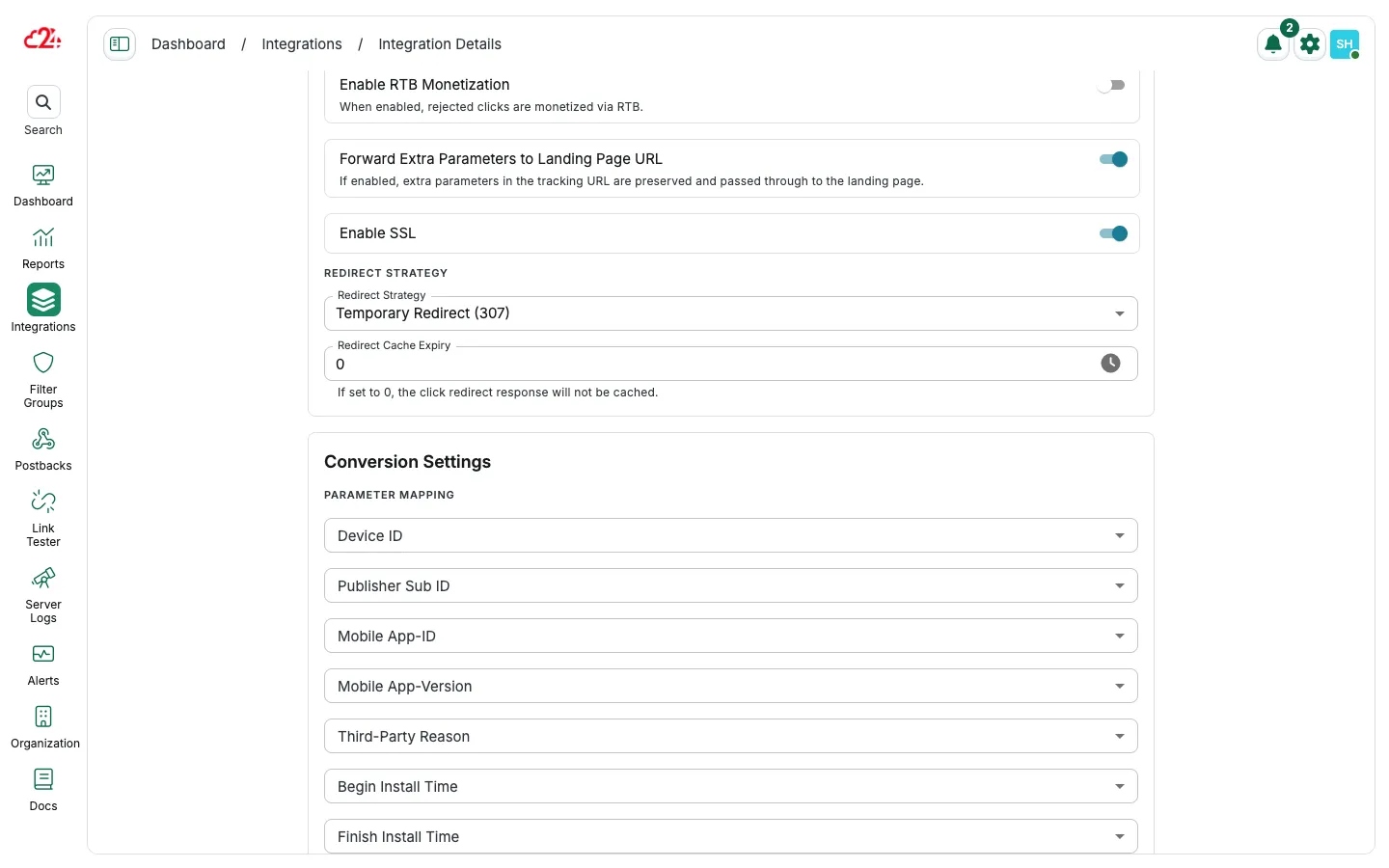
- Define approved and rejected click handling, including redirect settings.
Approved and rejected clicks
Section titled “Approved and rejected clicks”Define the handling of Approved and Rejected Clicks, including redirection settings:
-
From the dropdown menu, select the option where to Send the Approved Clicks to.
-
Select to Block or Redirect the rejected clicks by switching the Block Rejected Clicks selector.
-
If you choose to redirect the rejected clicks, select an option from:
- Redirect to Affise Preview URL of the offer, or
- Custom Fallback URL
Conversion screening
Section titled “Conversion screening”-
Enable Conversions Import to allow automatic import of conversions from Affise for screening.
-
Optionally, activate Platform Conversion Rejection Syncing.
-
Map the conversion parameters by choosing the values so they match the Affise setup as well.
Domain setup
Section titled “Domain setup”Set up DNS records (CNAME). This will allow you to route clicks through 24metrics for screening before reaching the offer. Without the Domain Setup (CNAME), the user’s clicks will not be sent to 24metrics for screening before reaching the offer/landing page.
For Conversion Screening only, this step is not necessary.
Follow the next steps only to implement click screening:
-
Navigate to Domain Setup tab in integration settings
-
Copy the CNAME and CNAME (SSL) host and value
-
Access your Domain Hosting service
-
Go to the Control Panel of your domain
-
Identify the DNS Records settings section
-
Add the Host and Value for both CNAMEs previously copied from 24metrics
By implementing this integration, you can expect increased conversion rates, improved ROI, and enhanced protection against fraudulent activities in your affiliate marketing campaigns.
Whitelist our IPs
Section titled “Whitelist our IPs”Allowlist the 24metrics IP addresses used for conversion imports and postback calls. See Server IP allowlist for the current list.